Crops can now be assigned to fields. This can be useful in a few ways, primarily with the Formula Rx tool. Crop Zones can be added to a Field if multiple crops are present within the Field. See the video and article to learn more about this function.
Steps:
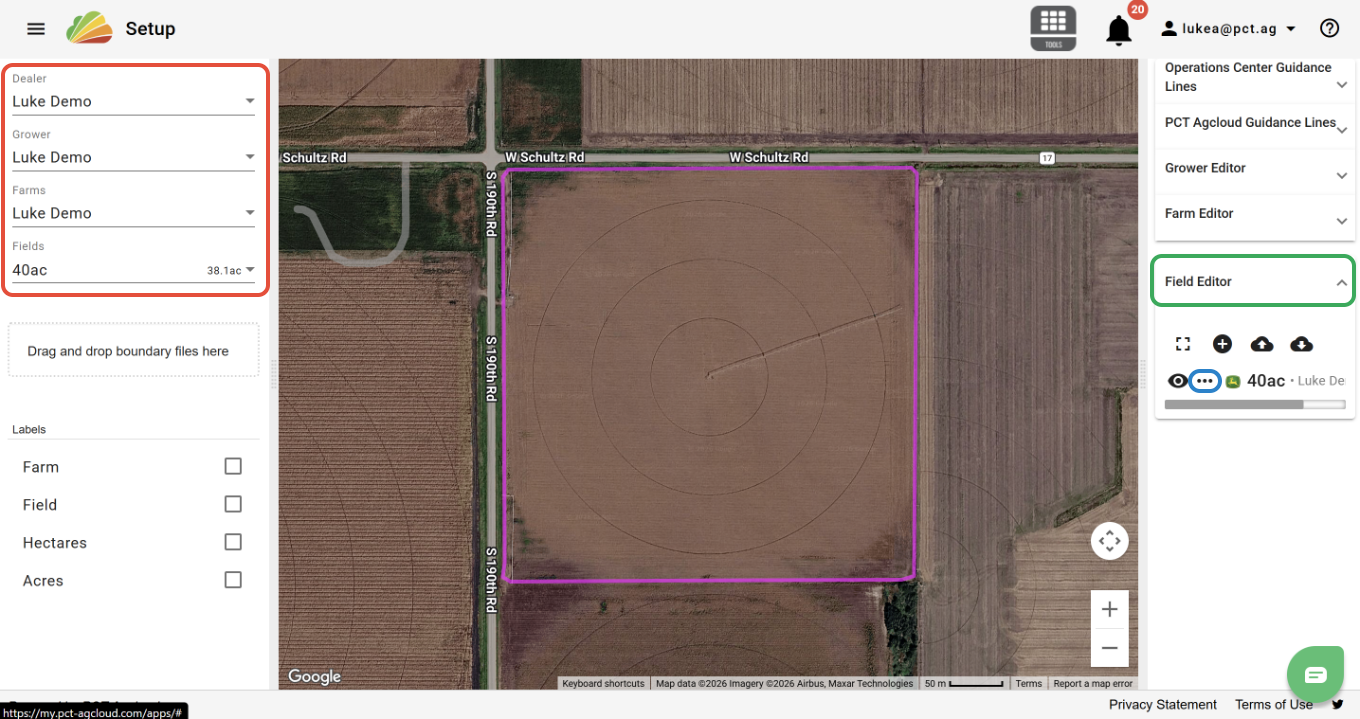
1. In the Setup tool, select the Farm(s) and Field(s) that you would like to work on.
2. Open the Field Editor dropdown.
3. Click the 'Options' button next to the desired Field.
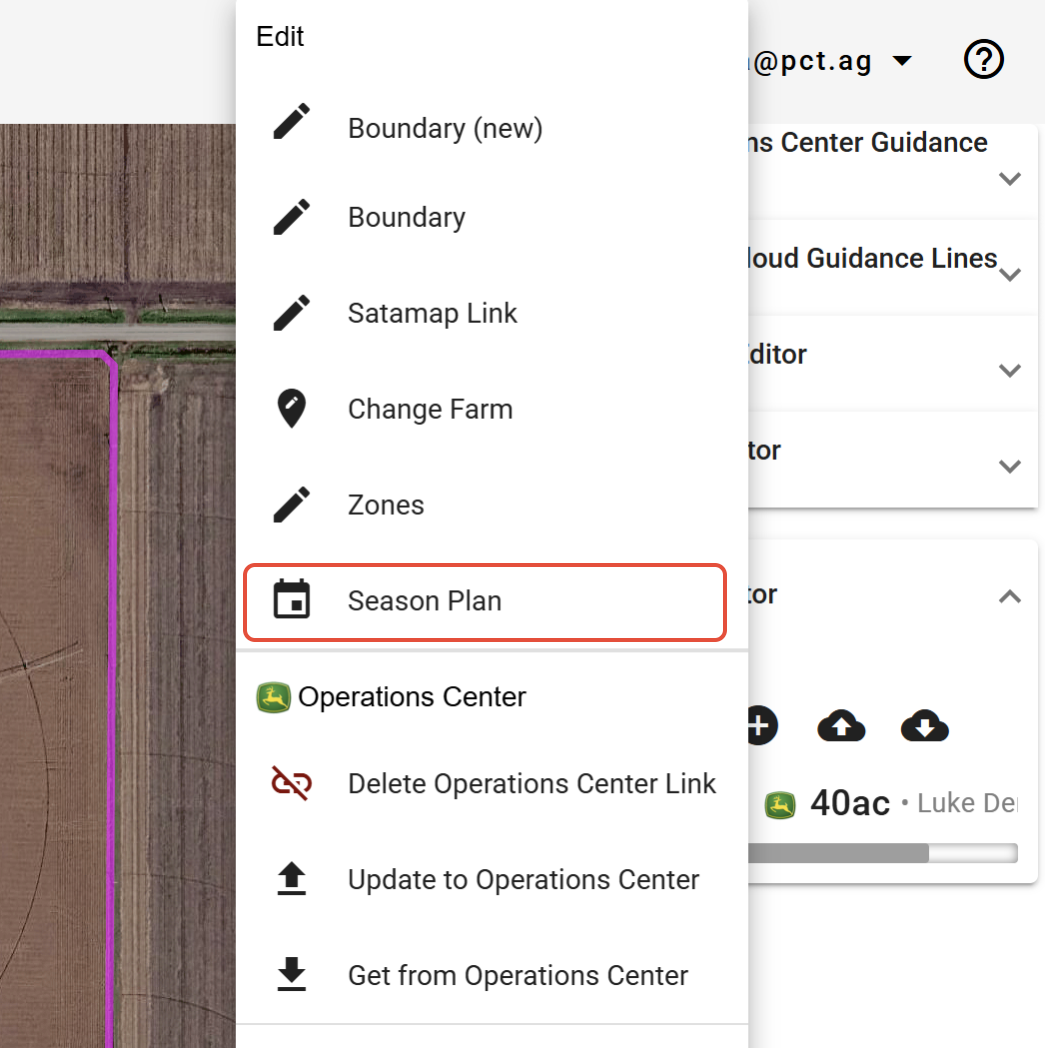
4. Select the 'Season Plan' button.
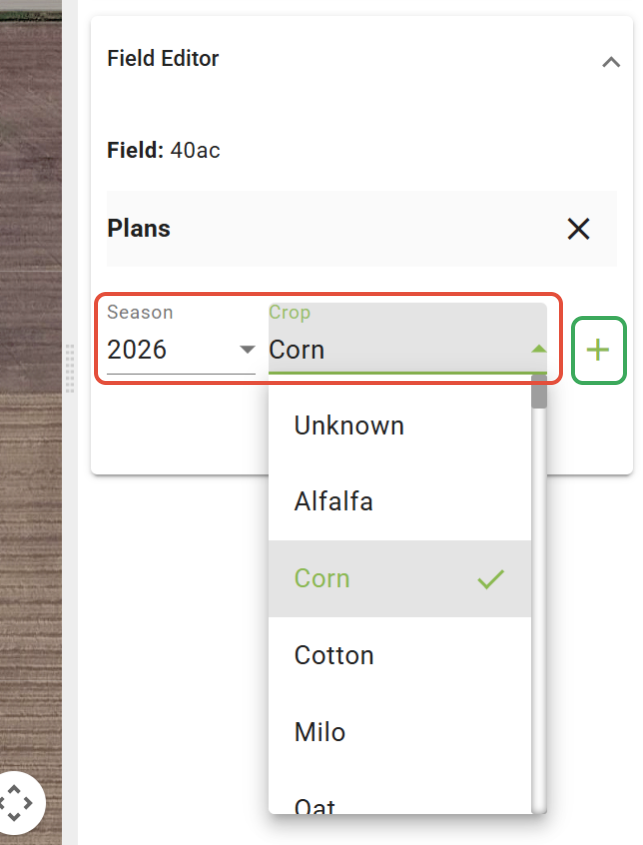
5. Select the Season and Crop.
6. Click the 'Add' button.
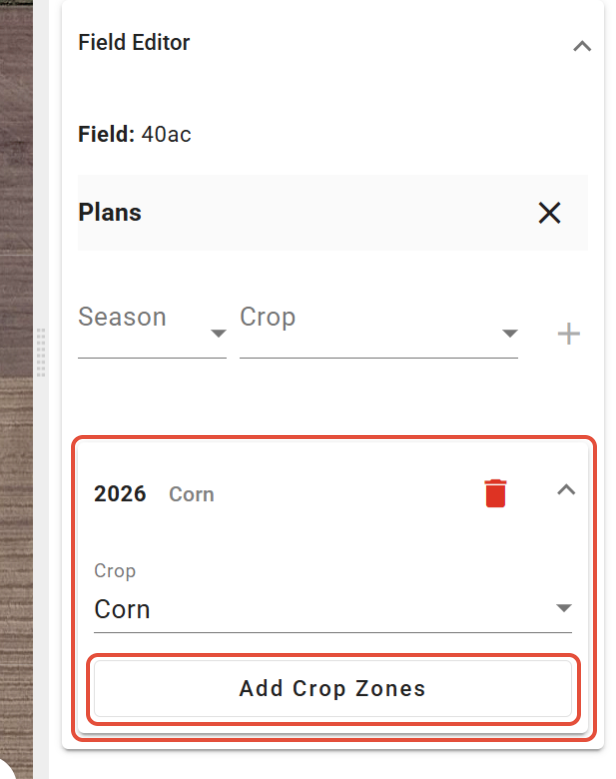
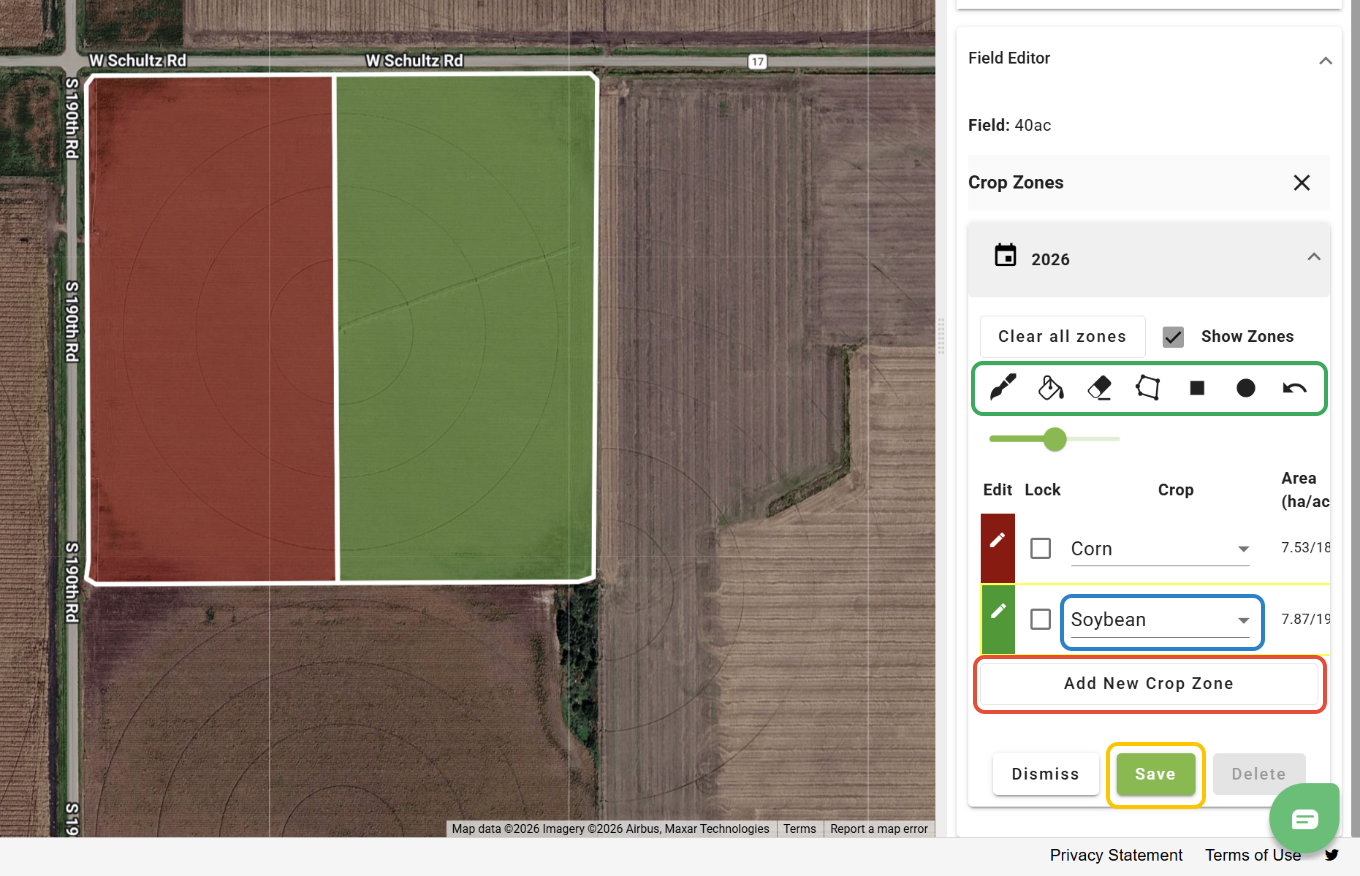
7. Once the Season and Crop have been added, the Season Plan can be opened edited and Crop Zones can be added by clicking 'Add Crop Zones'.
8. To add additional crops, click the 'Add New Crop Zone' button.
9. Use the paint tools to draw in the zones.
-Note: For more info on how the paint tools operate, see this video: https://www.youtube.com/watch?v=Qk1tx9-IsFo
10. Assign a Crop to the zone.
11. When finished, click 'Save'.
12. The Season Plan option can be opened again to delete or edit plans/zones. 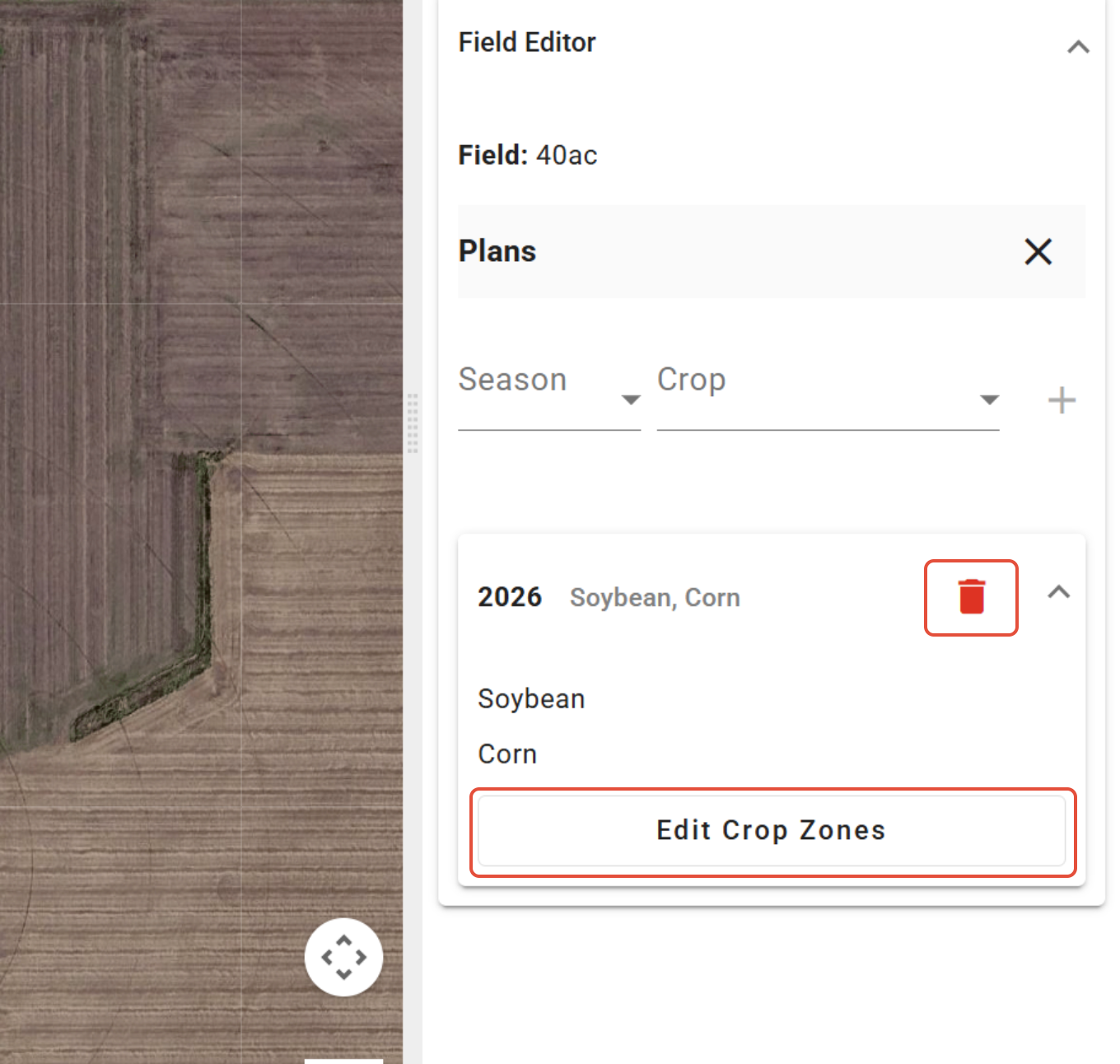
After Season Plans have been created, they can be used to filter fields in the Formula Rx tool. If multiple Crop Zones have been added for a Field, the Rx will only be generated for the zone of the selected Crop. Learn more about the Formula Rx tool HERE. 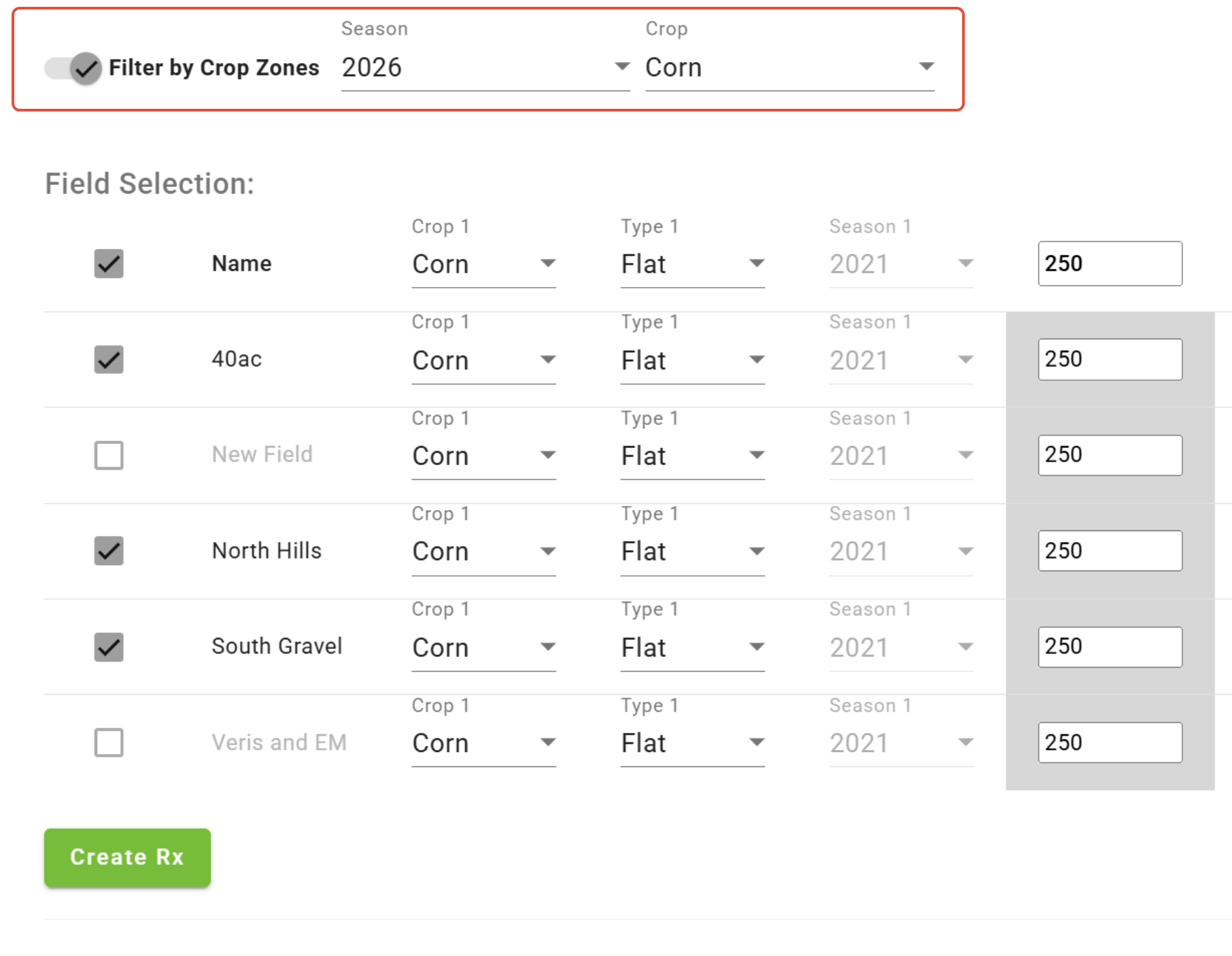
Crop Zones can also be displayed in the View tool. 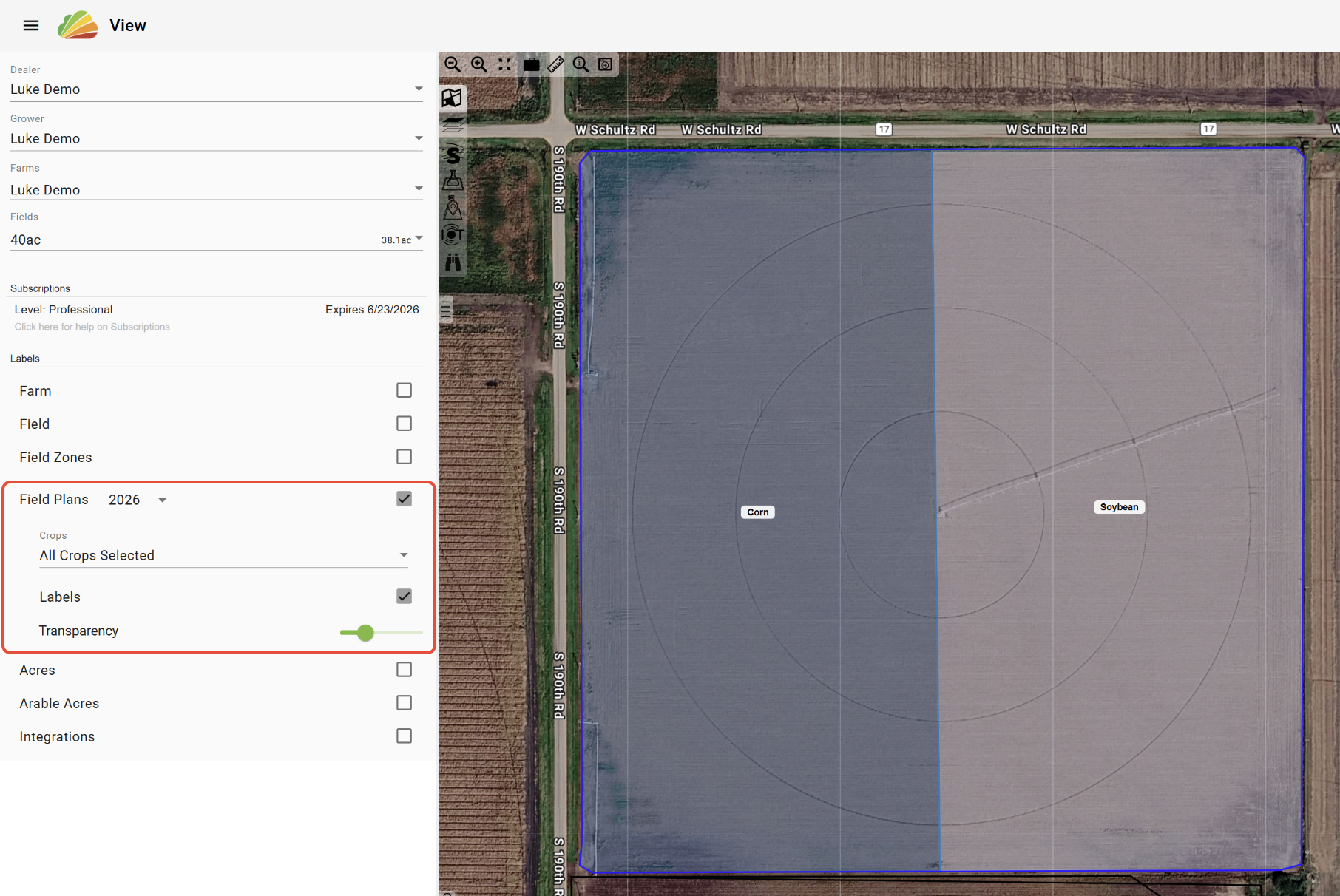
Was this article helpful?
That’s Great!
Thank you for your feedback
Sorry! We couldn't be helpful
Thank you for your feedback
Feedback sent
We appreciate your effort and will try to fix the article