See the article and video below to learn how to import operation data from Case/New Holland FieldOps™.
Steps:
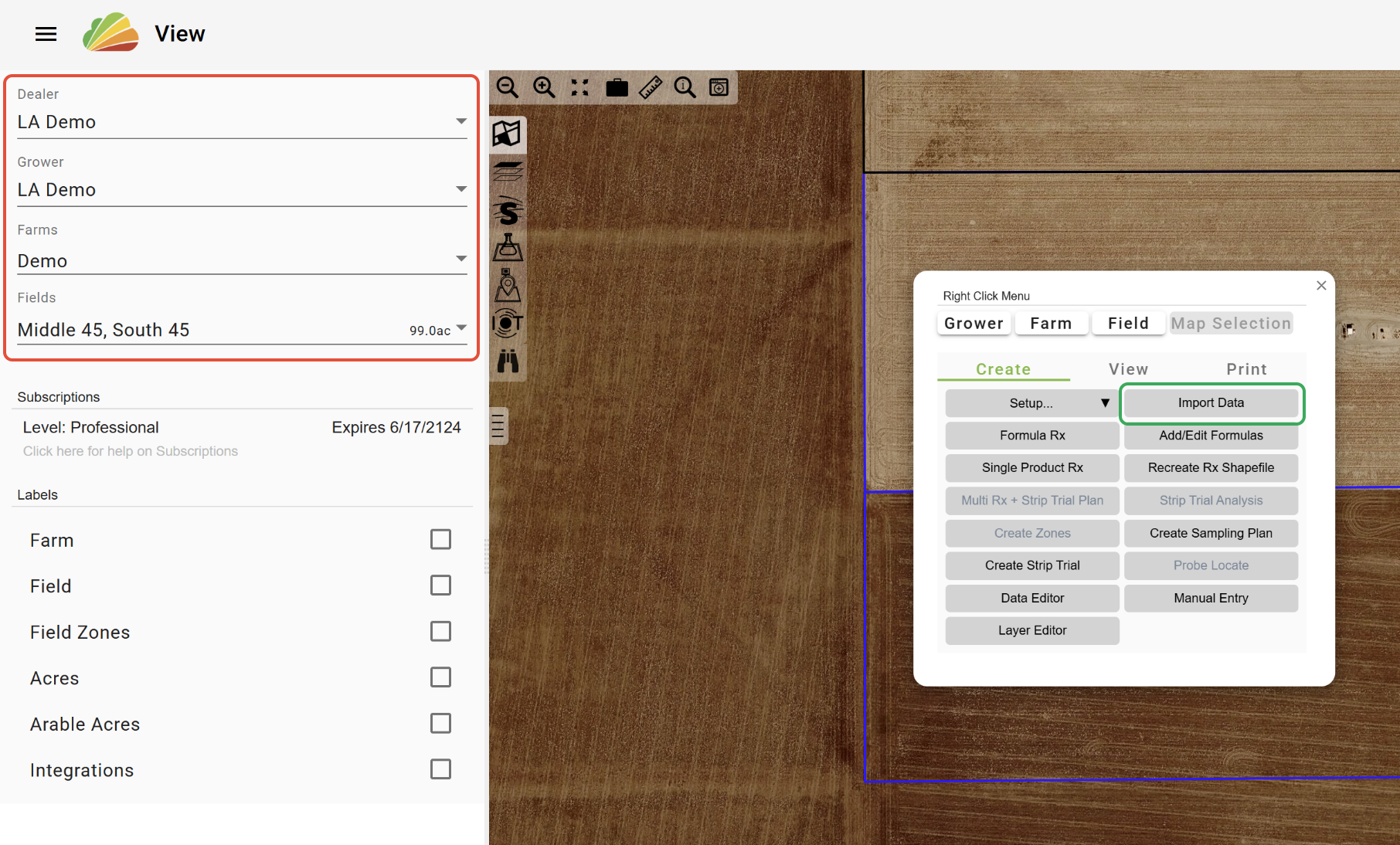
1. In View, select a Grower, Farm, and Field(s) in the GFF tree.
-Note: Whatever Fields are in this selection will be the target for import. So, if you want to import data for only one field, only select that field.
2. Select the 'Import Data' button in the Right-Click Menu.
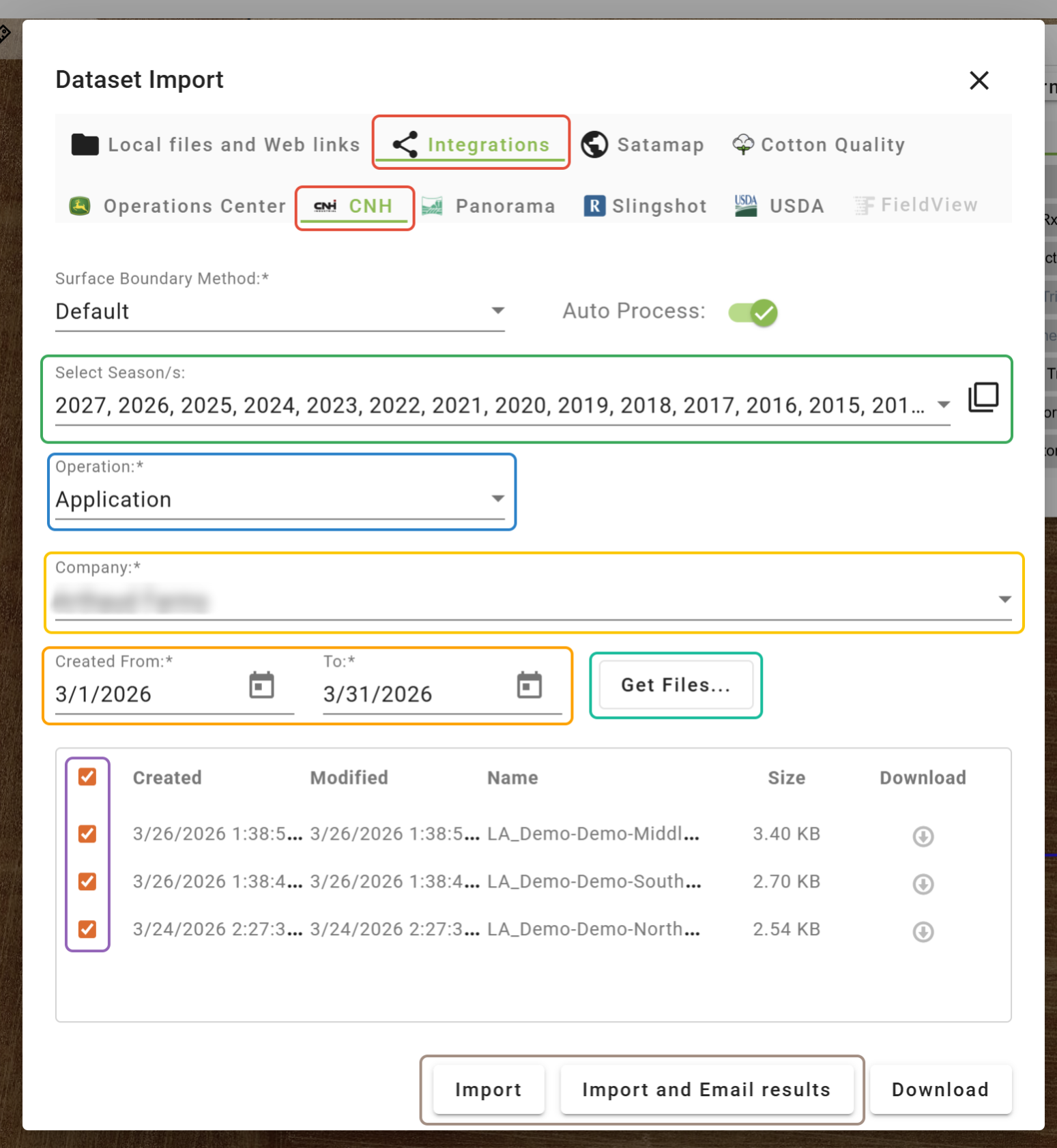
3. Select the 'Integrations' tab, and click 'CNH'.
4. Select the Season(s) for which you would like to import. This selection is independent of the date range selection and operates as a filter.
5. Select an Operation.
6. Select the FieldOps™ Company.
7. Choose a date range to search for files.
8. Click 'Get Files...'.
9. Select the files that you would like to import.
10. Click 'Import' for file groups of 200MB or less and click 'Import and Email results' for file groups of 200 MB or larger.
Was this article helpful?
That’s Great!
Thank you for your feedback
Sorry! We couldn't be helpful
Thank you for your feedback
Feedback sent
We appreciate your effort and will try to fix the article