To export prescriptions created in PCT Agcloud to FieldOps™, follow the steps below.
To use this function, your Agcloud and FieldOps™ accounts must be integrated, and the selected Agcloud Grower must be linked to a Grower in FieldOps™. Learn how to do this HERE.
Steps:
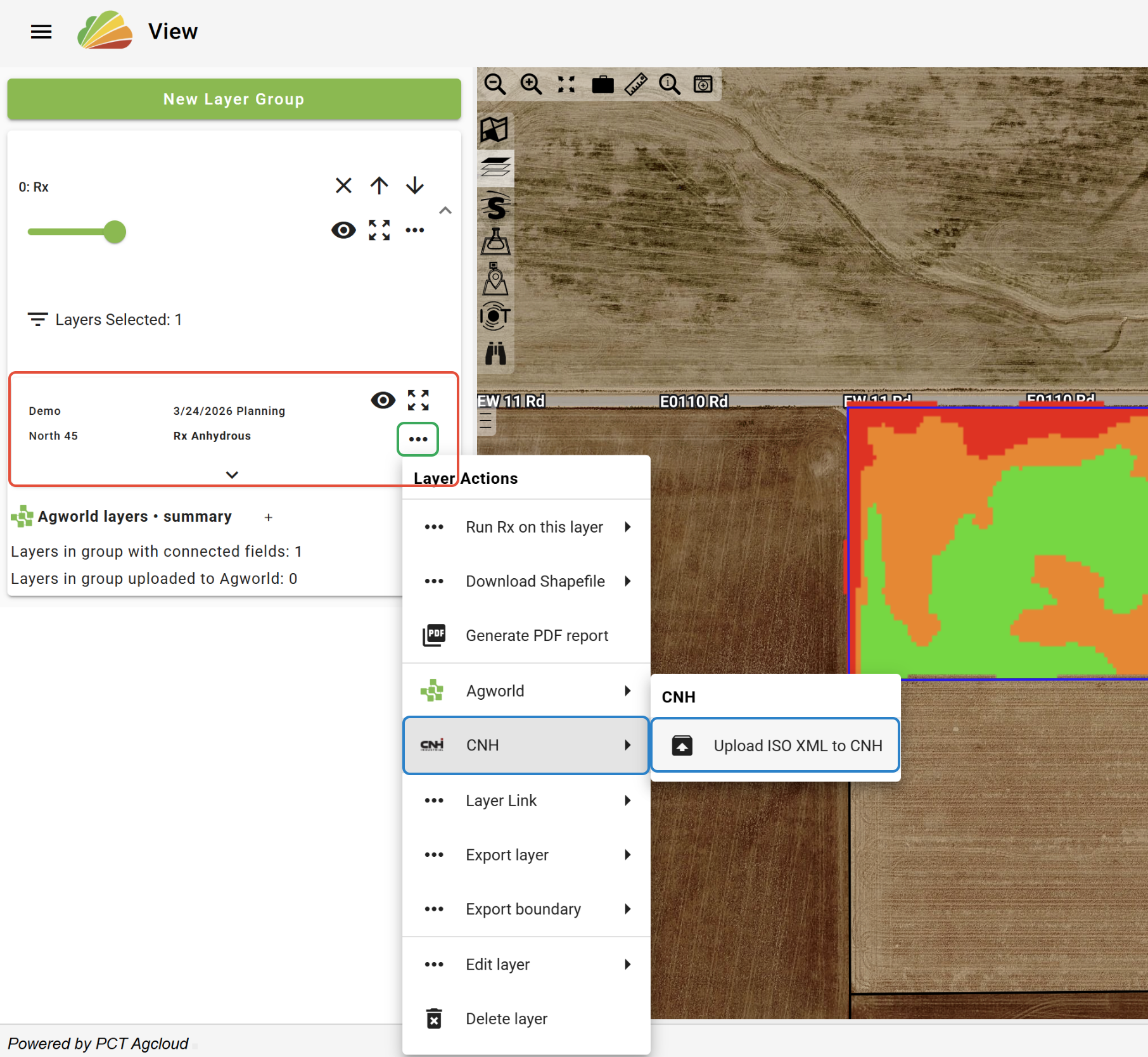
1. In View, load the desired Rx layer(s).
2. Click the ‘More options' button in the layer tab represented by the three dots.
3. In the Layer Actions menu, navigate to the 'CNH' button and click ‘Upload ISO XML to CNH’.
4. Select the desired company and click ‘Upload’.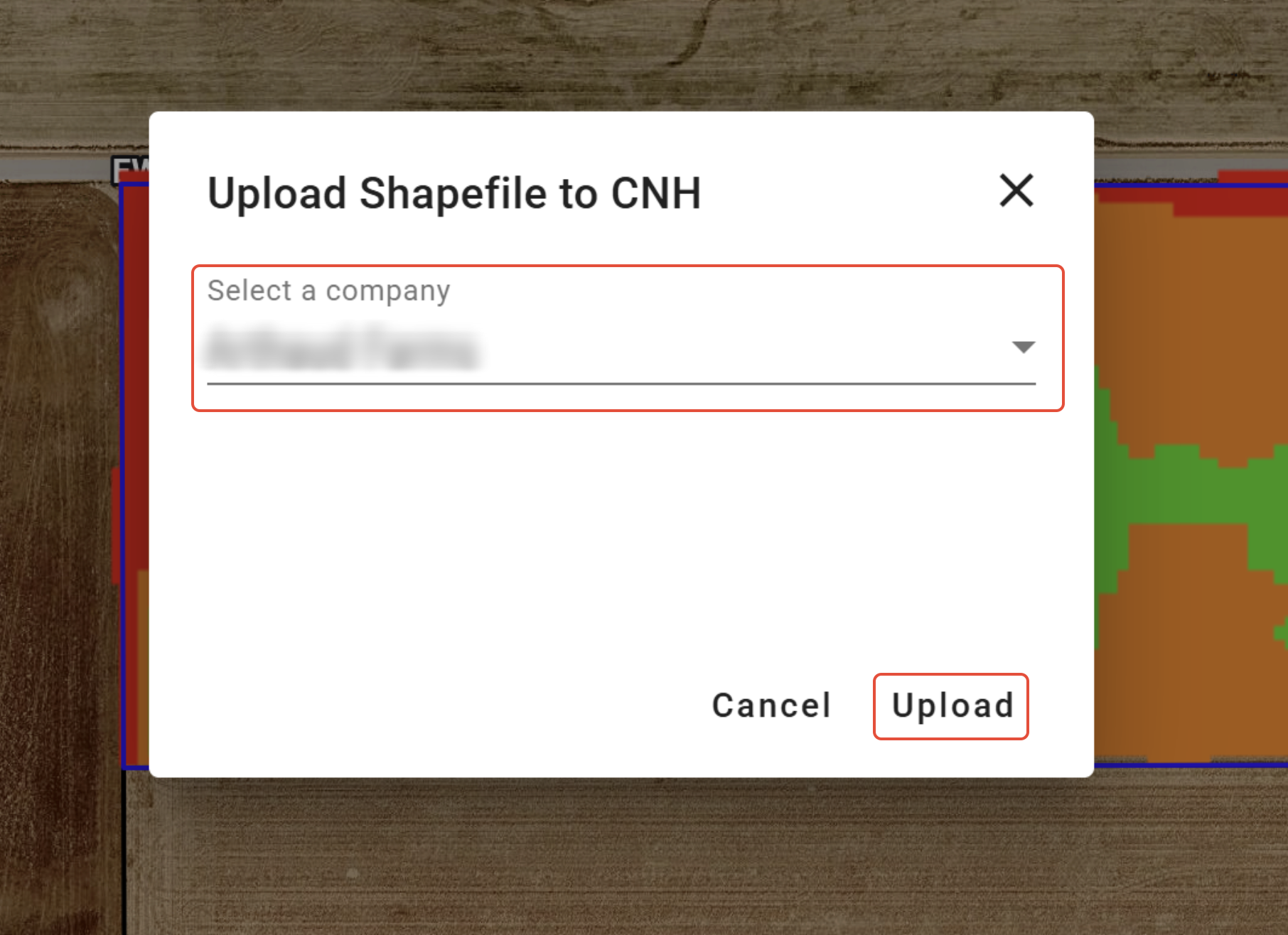
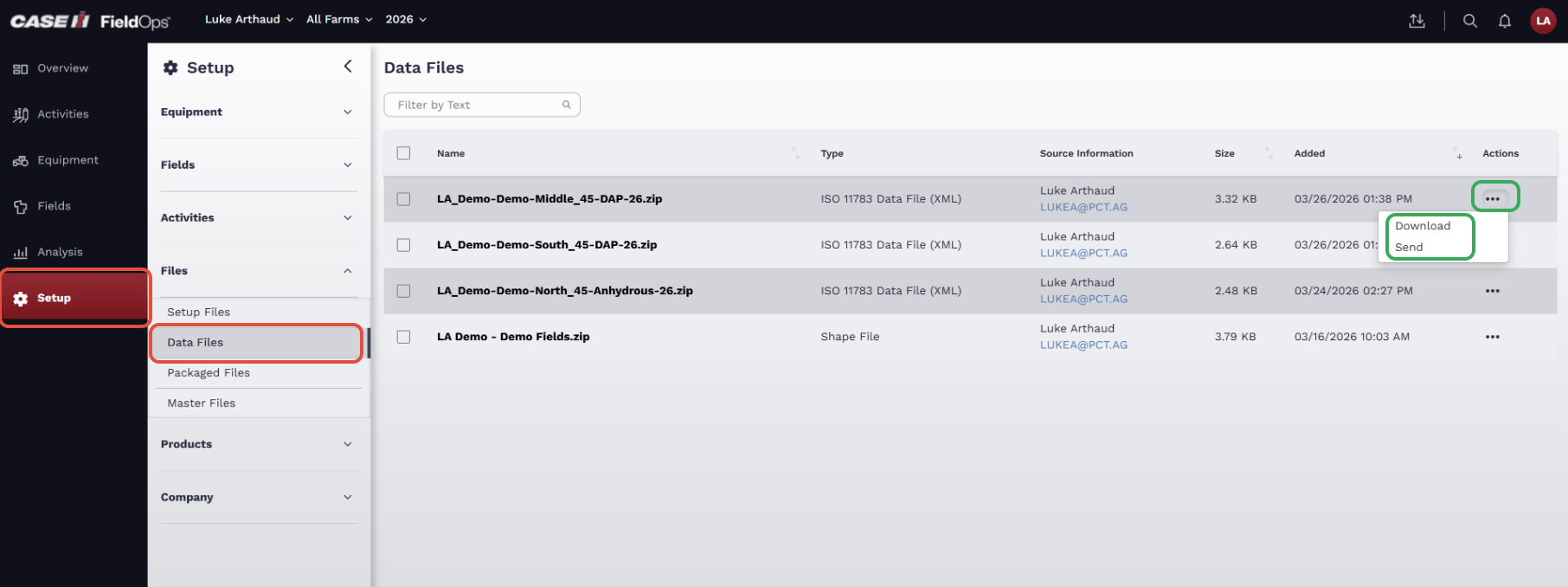
5. To locate the file on the FieldOps website, open the 'Setup' tab and click 'Data Files'.
6. Click the 'Actions' button for the desired prescription and choose to either download the file or send it to a machine.
Was this article helpful?
That’s Great!
Thank you for your feedback
Sorry! We couldn't be helpful
Thank you for your feedback
Feedback sent
We appreciate your effort and will try to fix the article