Growers, Farms, and Fields can be imported from Case/New Holland FieldOps™. Follow the steps in the video or article below to learn how.
-Note: You must have an active link to your FieldOps™ account to complete this process. To learn how to link your account, click HERE.
Steps:
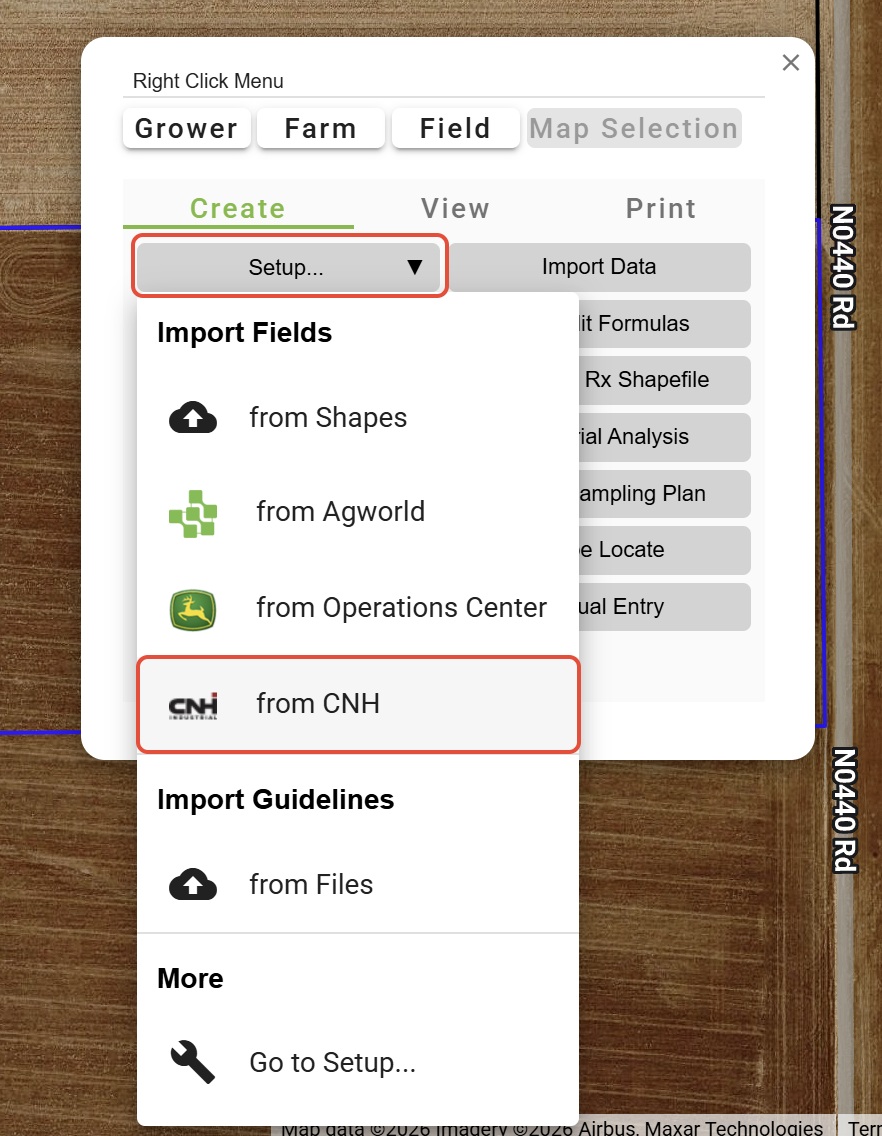
1. This process can be done in either the View tool or the Setup tool. In View, click the 'Setup' dropdown in the Right Click Menu and select 'from CNH'.
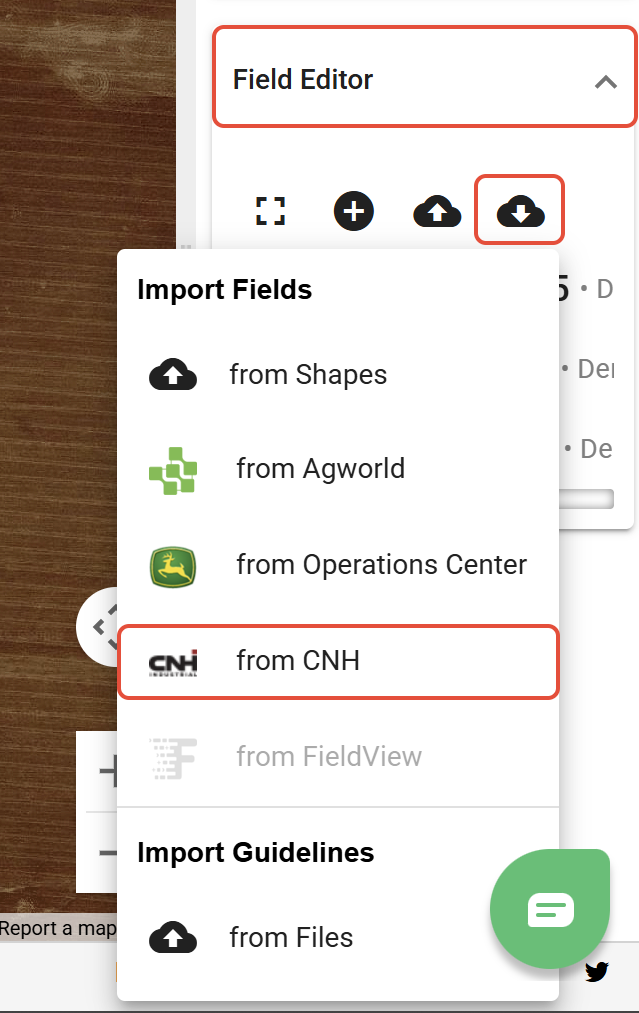
Or, in the Setup tool, select the 'Field Editor' dropdown, click the 'Import fields' button, and click 'from CNH'.
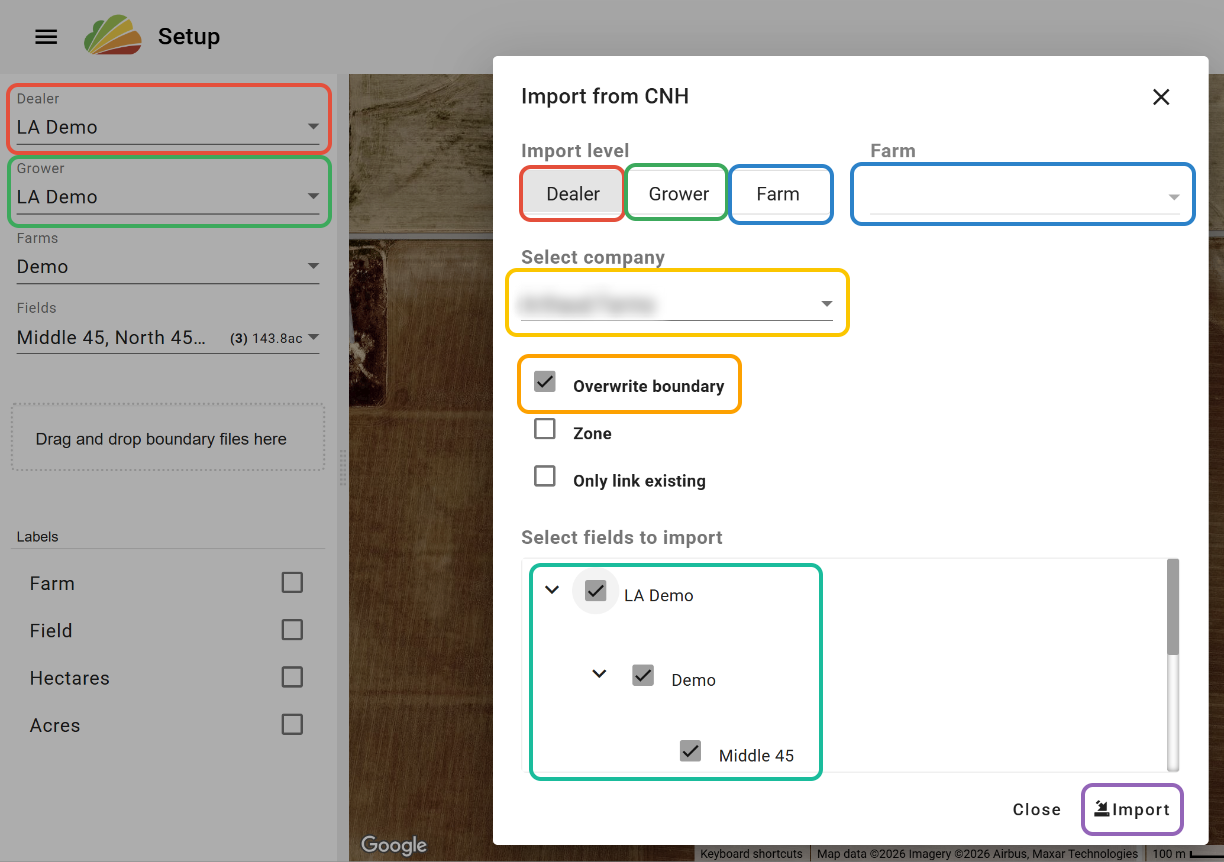
2. Select the Import Level.
- 'Dealer' will create a new Grower under the selected Dealer based on the selected Client from FieldOps™, and import the selected Farms and Fields to that Grower. (Select this option to bring over all information from Operations Center™)
- 'Grower' will import the selected Farms and Fields from FieldOps™ to the Grower selected in the DGFF tree in Agcloud.
- 'Farm' will import the selected Fields from FieldOps™ to the Farm selected in the "Farm" dropdown. The options available in the dropdown are dependent on the Grower selected in the DGFF tree.
3. Select the FieldOps™ Company.
'Overwrite Boundary' - If an equivalent field already exists in Agcloud, it will be overwritten with the FieldOps™ boundary. Not overwriting will link the fields but not change any boundaries.
4. Select the Clients, Farms, and Fields to import from FieldOps™.
5. Click 'Import'.
Was this article helpful?
That’s Great!
Thank you for your feedback
Sorry! We couldn't be helpful
Thank you for your feedback
Feedback sent
We appreciate your effort and will try to fix the article