Soil Sample Data can be exported in bulk to one combined CSV or in individual CSVs. The steps for both are outlined below.
Combined CSV
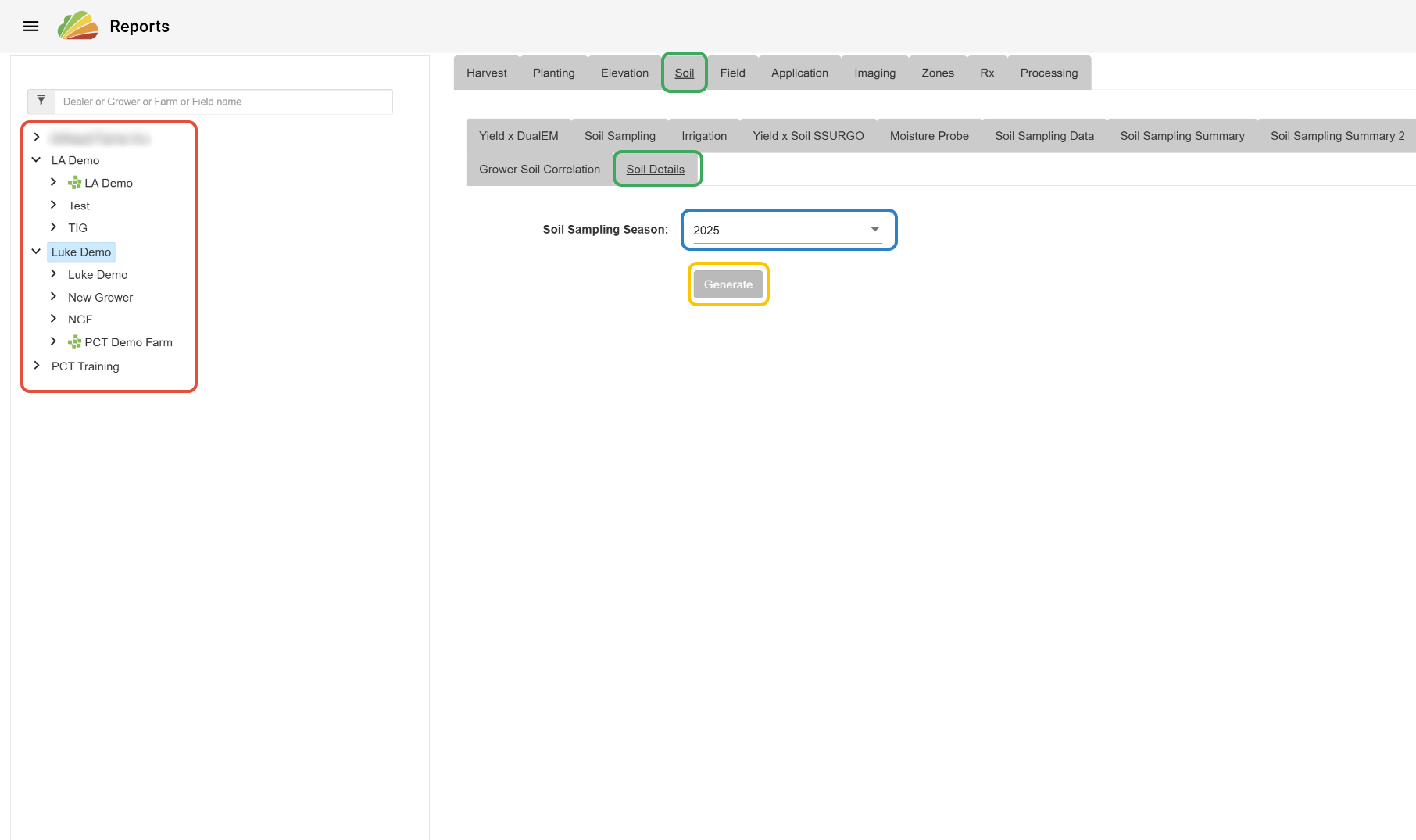
1. In the Reports tool, begin by selecting the export level/target. A Field, Farm, Grower, or Dealer can be selected.
2. Select the 'Soil' tab and the 'Soil Details' subtab.
3. Select a season.
4. Click 'Generate'.
Individual CSVs
1. In the View tool, select the Grower, Farm(s), and Field(s) that you would like to export data for.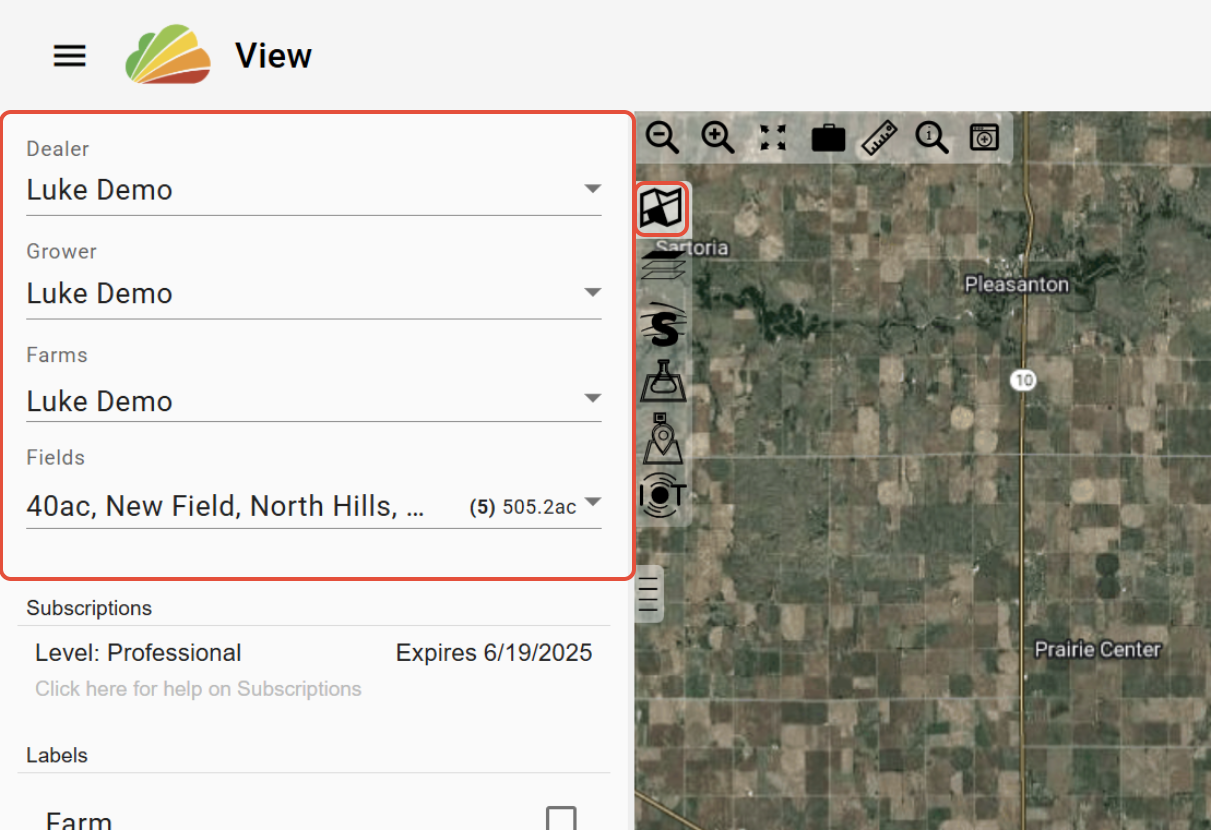
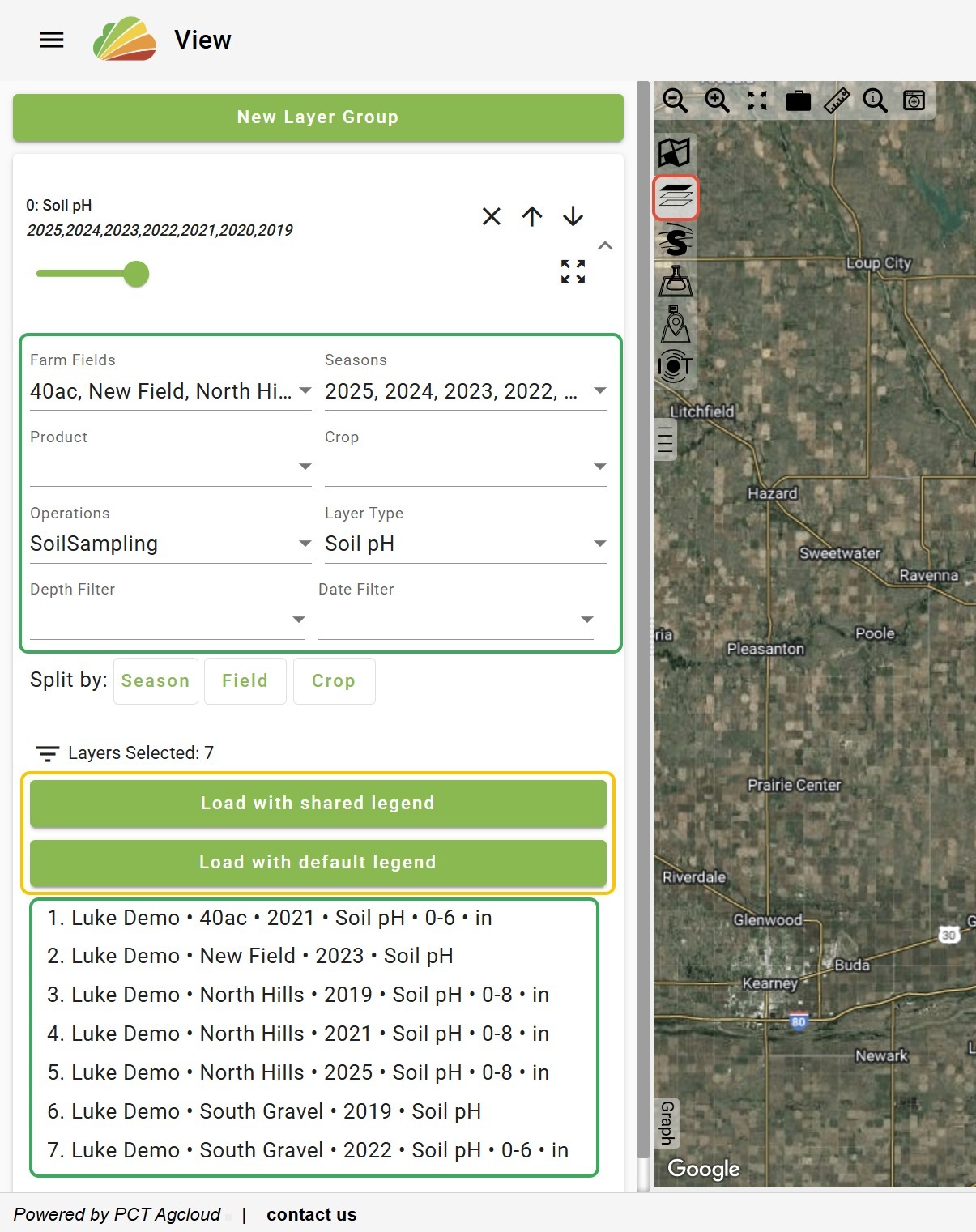
2. Open the Layers tab.
3. Select just one soil layer for each Field and Season that you want to export.
-Note: Only one layer per Field and Season needs to be selected/loaded in the View tool. All attributes of the soil sampling operation will be included in the file when exported.
4. Load the layers.
-Note: Load with either shared or default legend.
5. Click the Layer Group 'More options...' button.
6. Select the desired file type.
-Note: 'Raw' file types will include the unedited data. 'Clean' file types will include any edits made to the data.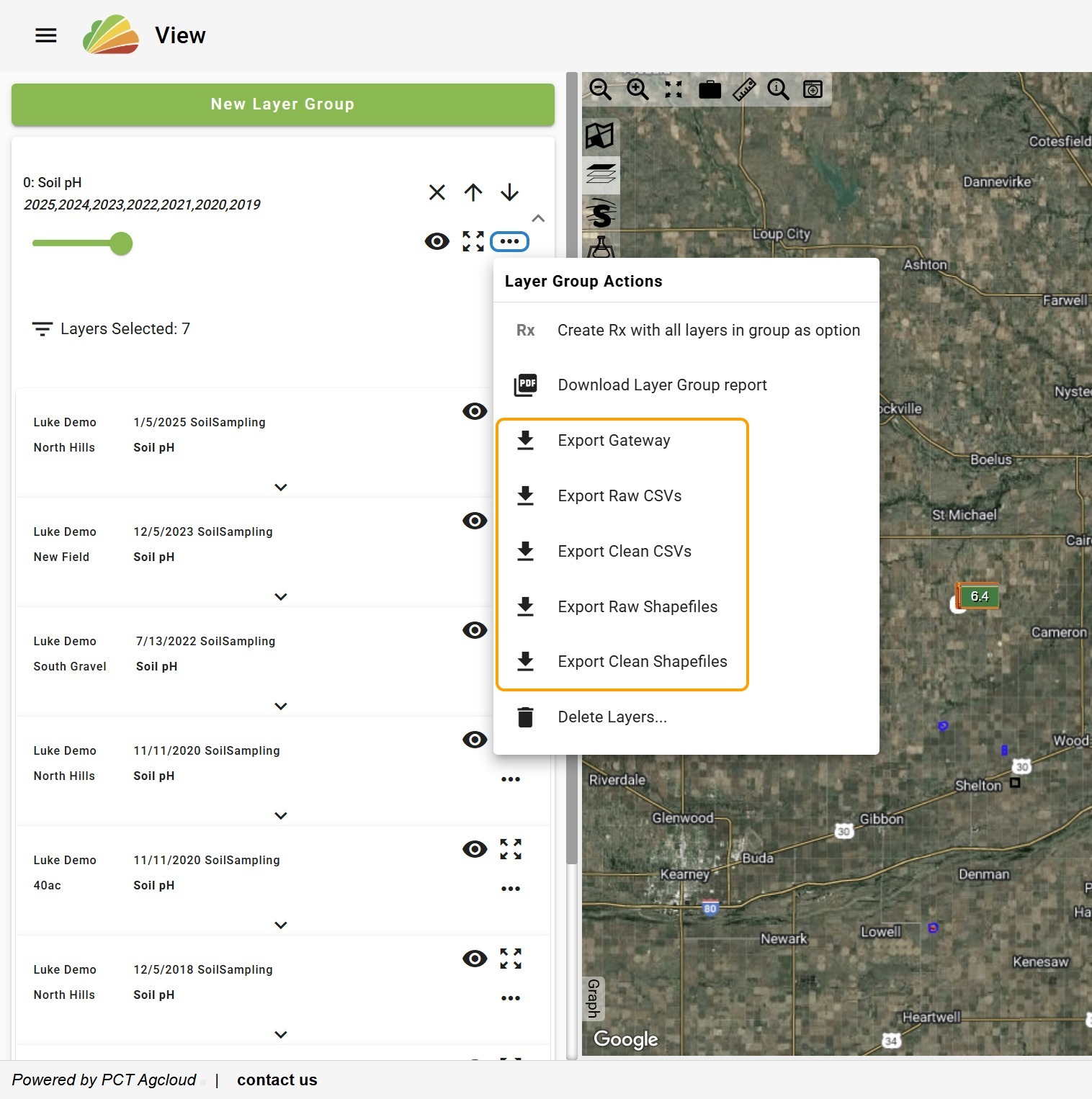
Was this article helpful?
That’s Great!
Thank you for your feedback
Sorry! We couldn't be helpful
Thank you for your feedback
Feedback sent
We appreciate your effort and will try to fix the article