Growers, Farms, and Fields can be imported from Climate FieldView. Follow the steps in the video or article below to learn how.
-Note: You must have an active link to your FieldView account to complete this process. To learn how to link your account, click HERE.
Steps:
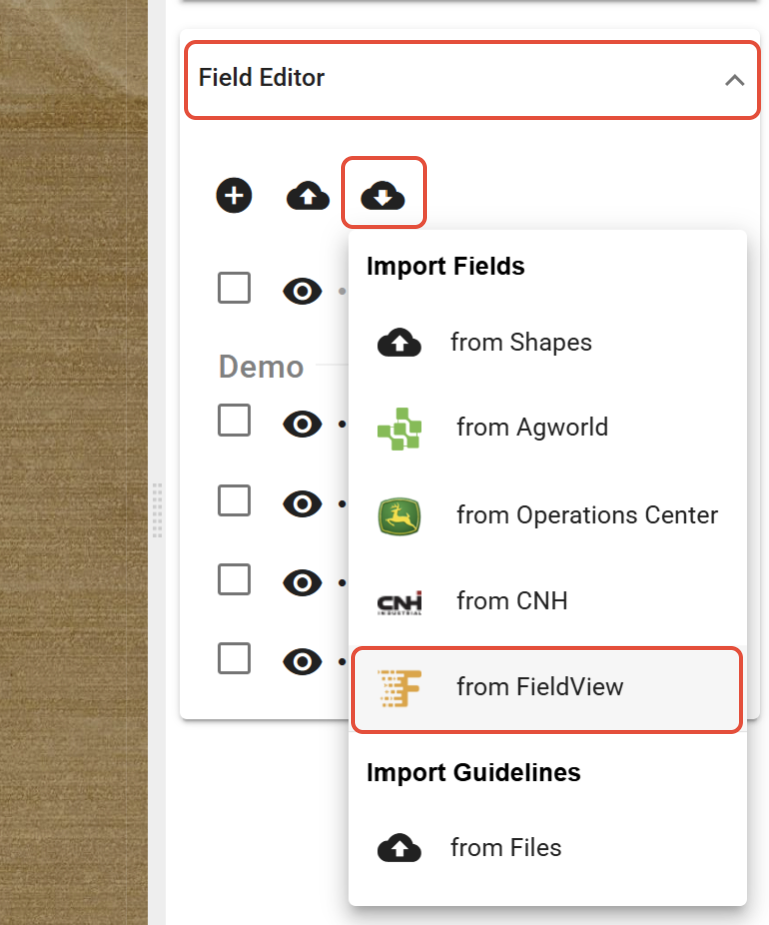
1. This process can be done in either the View tool or the Setup tool. In View, click the 'Setup' dropdown in the Right Click Menu and select 'from FieldView', or in the Setup tool, select the 'Field Editor' dropdown, click the 'Import fields' button, and click 'from FieldView'.
2. Select the Import Level.
- 'Grower' will import the selected Farms and Fields from FieldView to the Grower selected in the DGFF tree in Agcloud.
- 'Farm' will import the selected Fields from FieldView to the Farm selected in the "Farm" dropdown. The options available in the dropdown are dependent on the Grower selected in the DGFF tree.
3. Select the Clients, Farms, and Fields to import from FieldView.
4. Click 'Import'. 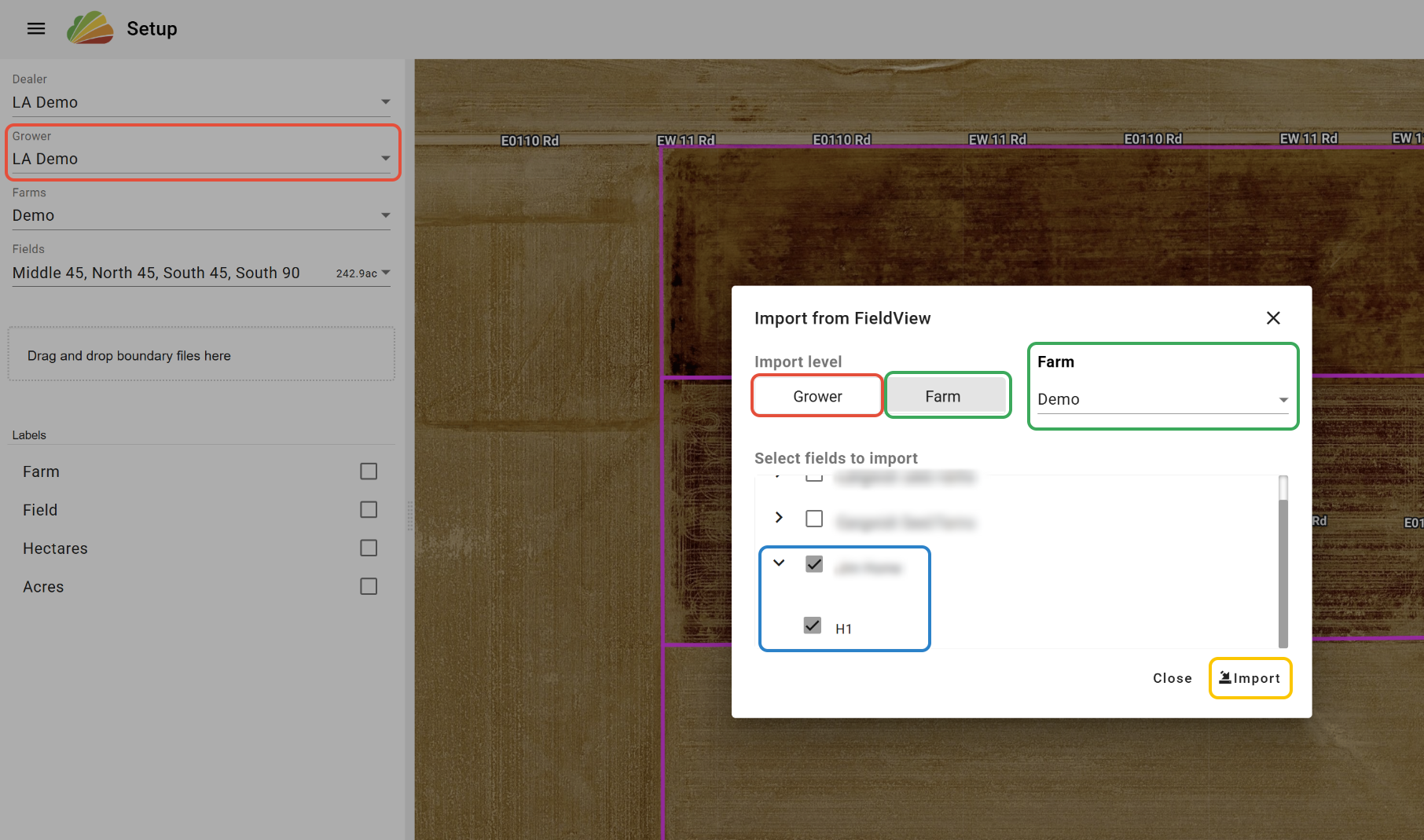
Was this article helpful?
That’s Great!
Thank you for your feedback
Sorry! We couldn't be helpful
Thank you for your feedback
Feedback sent
We appreciate your effort and will try to fix the article