Follow the steps below to link your PCT Agcloud account to your Case or New Holland FieldOps™ account.
-Note: Only one account can be linked at a time.
TABLE OF CONTENTS
Connect Accounts
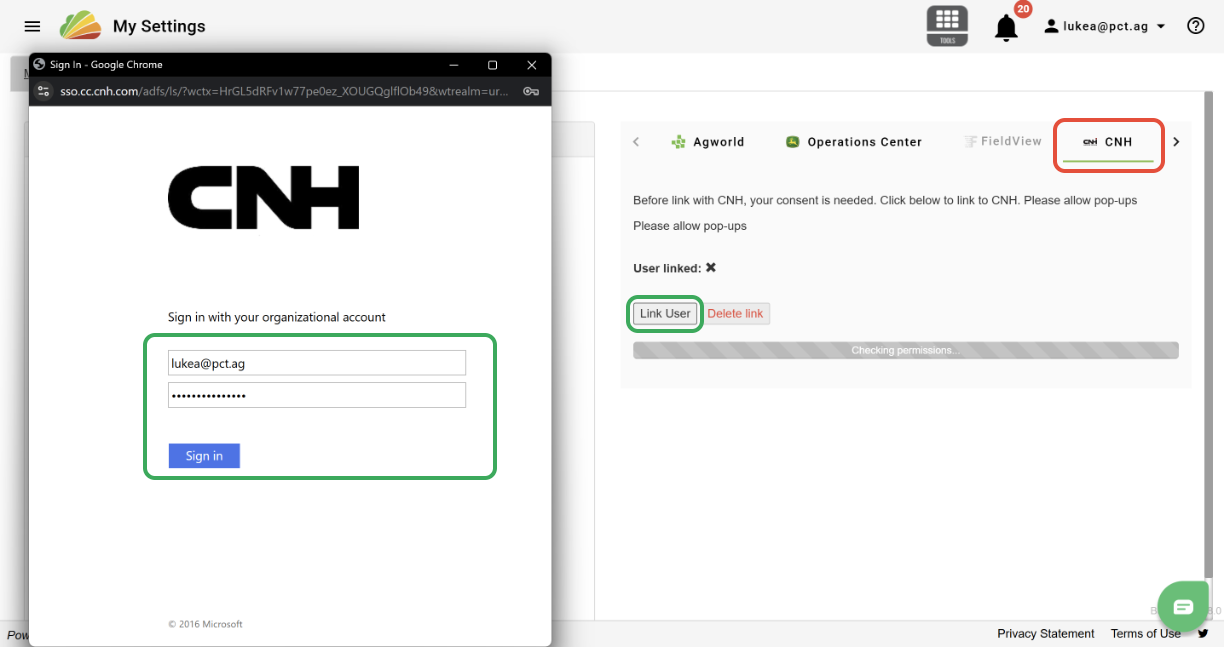
1. In the My Settings page, click the 'CNH' tab.
2. Click the 'Link User' button. If you are already logged into FieldOps™, the link will be established automatically. If not, a pop-up window will appear, and your FieldOps™ login can be entered.
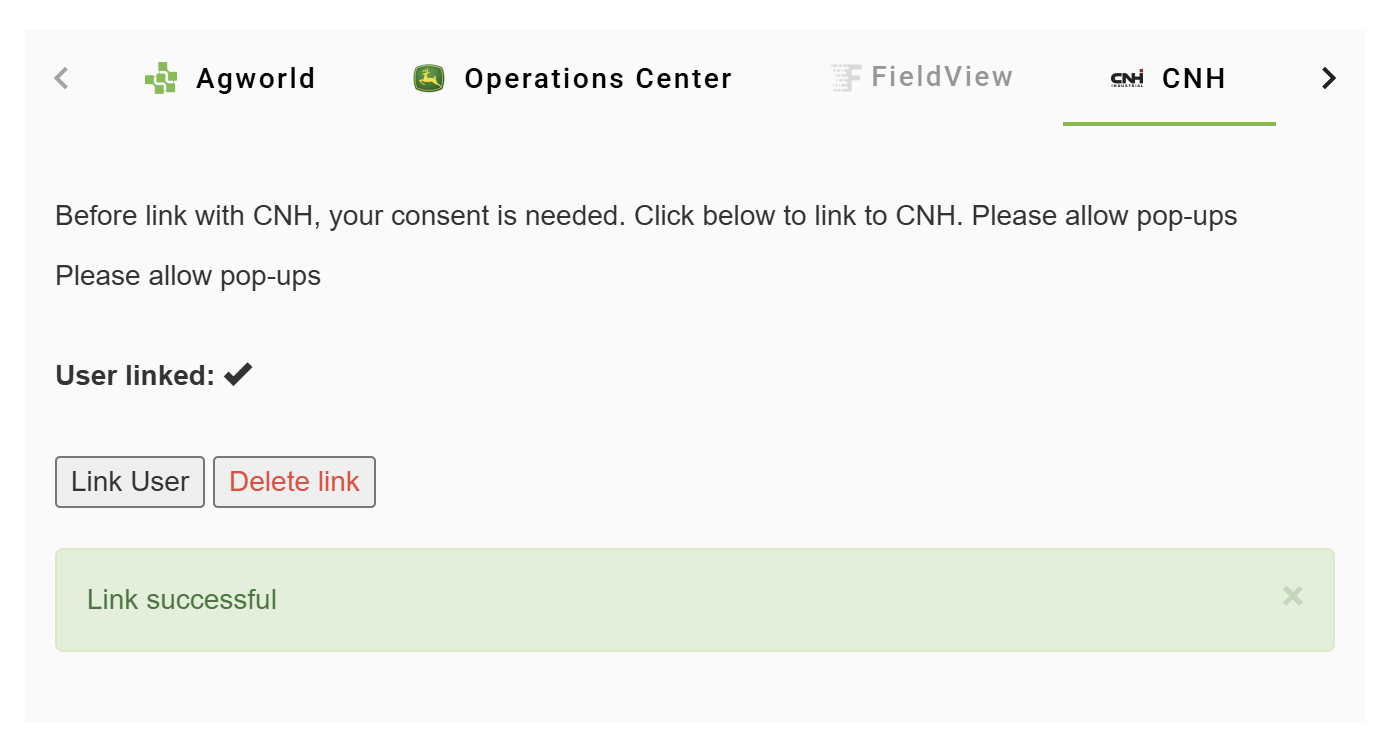
3. If the link is established successfully, a check mark will be displayed next to the "User linked" status, and a "Link successful" message will be displayed.
Link Growers
Growers can be linked so that data is automatically imported from FieldOps™ to Agcloud.
1. In the Setup tool, select the 'Grower Editor' dropdown and click the '...' button next to the Grower that you would like to link a FieldOps™ company to.
2. Click the 'CNH' button. 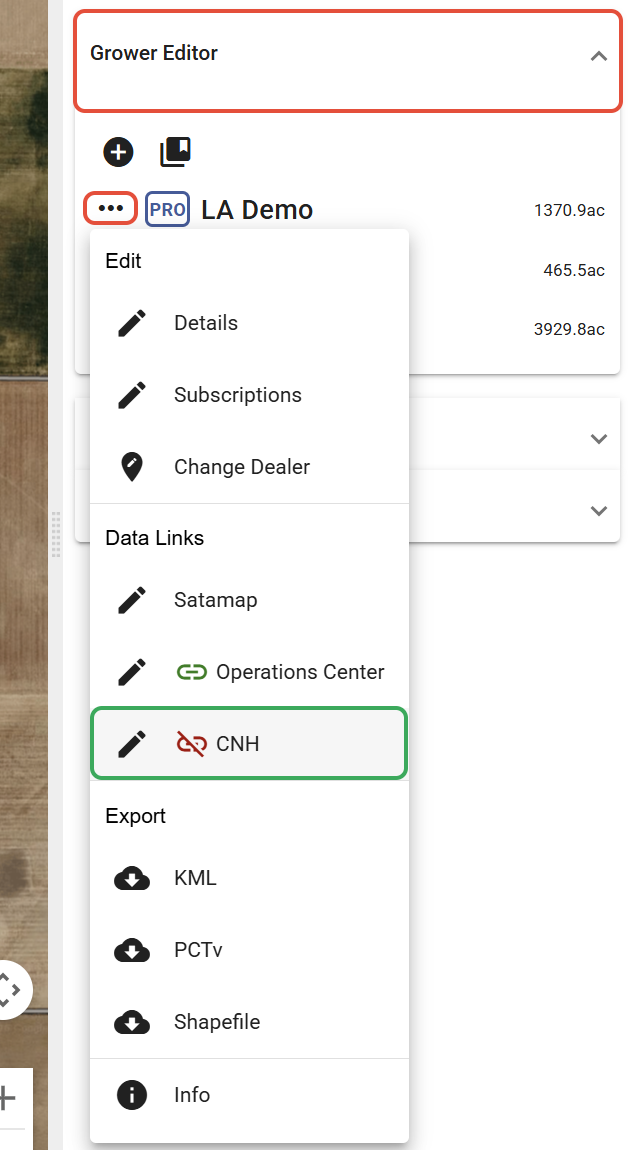
3. Select the company from the dropdown.
4. Then click 'Link to CNH'. 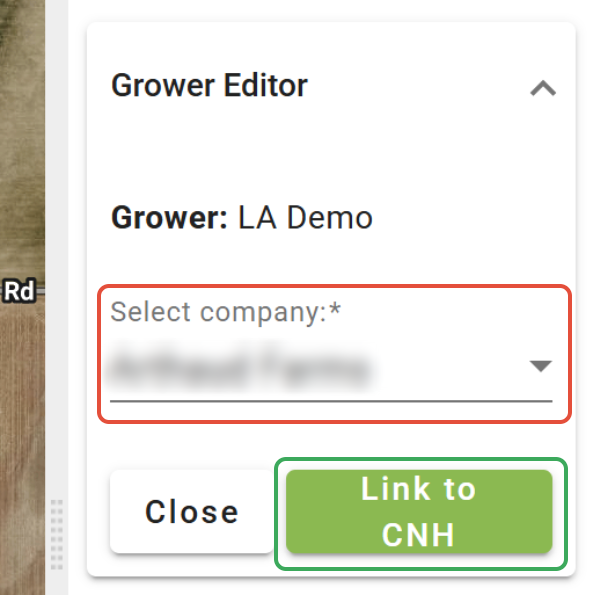
5. Select the auto-upload or auto-download options. The download option will automatically import new data from FieldOps™ daily. The upload option will automatically upload prescriptions to FieldOps™ once they are created. 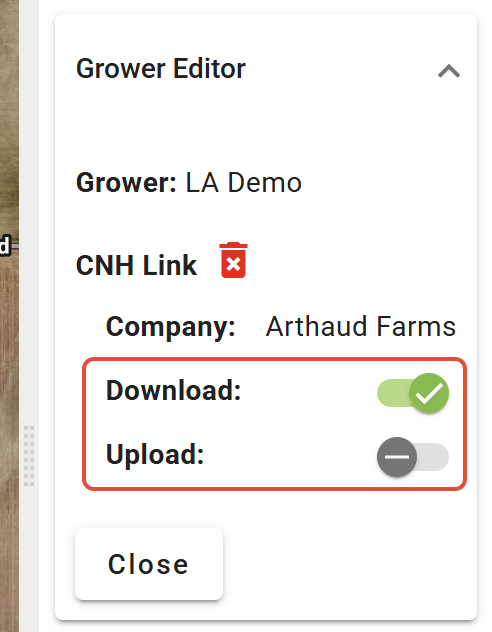
Was this article helpful?
That’s Great!
Thank you for your feedback
Sorry! We couldn't be helpful
Thank you for your feedback
Feedback sent
We appreciate your effort and will try to fix the article