Multi Product Rx can be used to create single or multi-product prescriptions for one field at a time. The 'Multi Product Rx' button in the Right-Click Menu in View and the 'Multi Product/Single Field+ST' tab in the Rx tool are the same application in different locations. Follow the steps in the video or article below to learn how to use this tool.
TABLE OF CONTENTS
- How to access the Single Product Rx tool
- Select Layer
- Choose Products
- Classify Settings
- Edit Layer
- Assign Rates
- Save and Export
- Edit
How to access the Single Product Rx tool
Right Click Menu (View)
-In the View tool, with the desired Grower, Farm, and Field selected, click the 'Multi Rx + Strip Trial Plan' button in the Right-Click Menu. 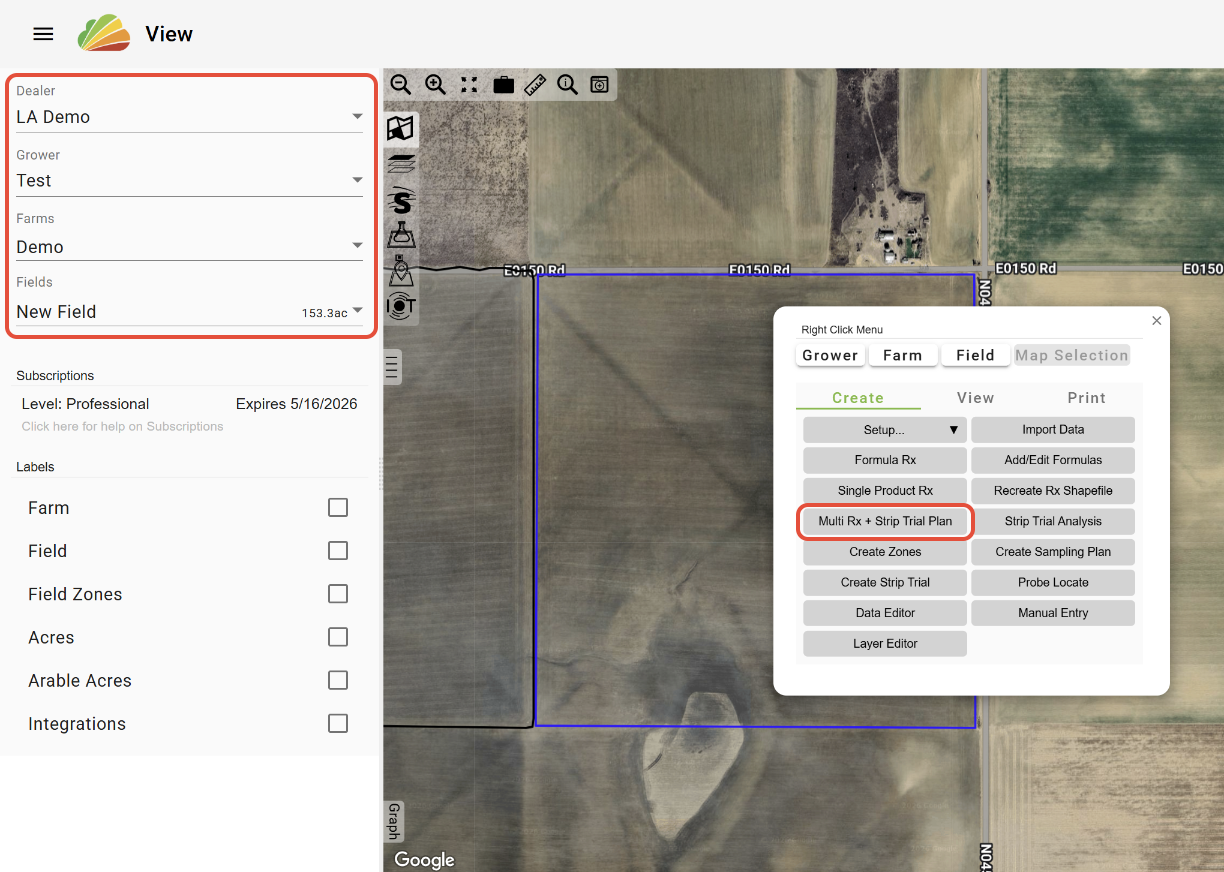
Layer Menu (View)
-In the View tool, select the 'Layers' tab.
-Load the desired layer, and select the 'Options' menu.
-Select 'Run Rx on this layer' and 'Multi Product Rx'. 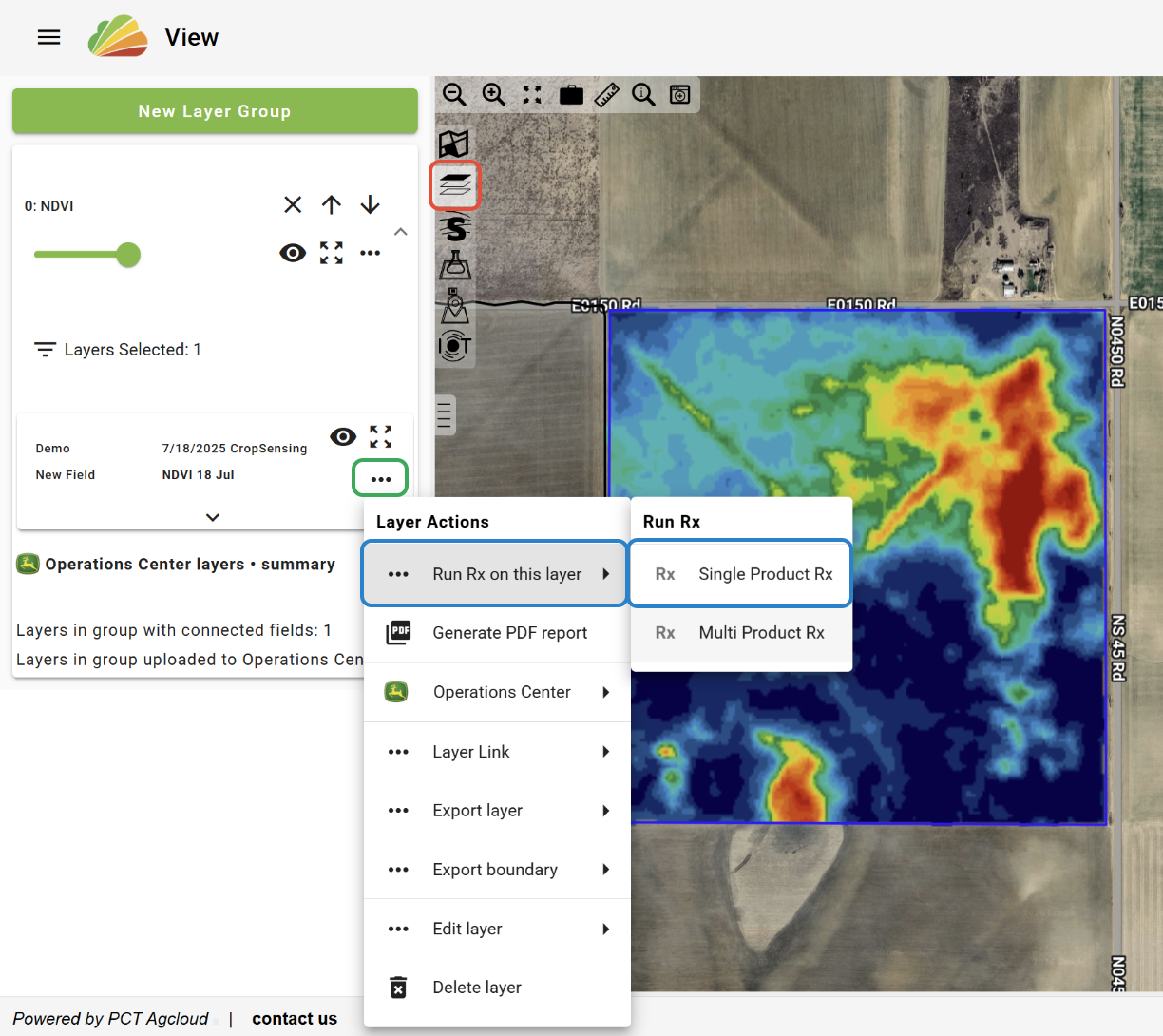
Rx Tool
-Open the 'Rx' tool from the 'Tools' menu.
-Select the 'Multi Product/Single Field+ST' tab.
-Select the Field that you would like to create Rx's for.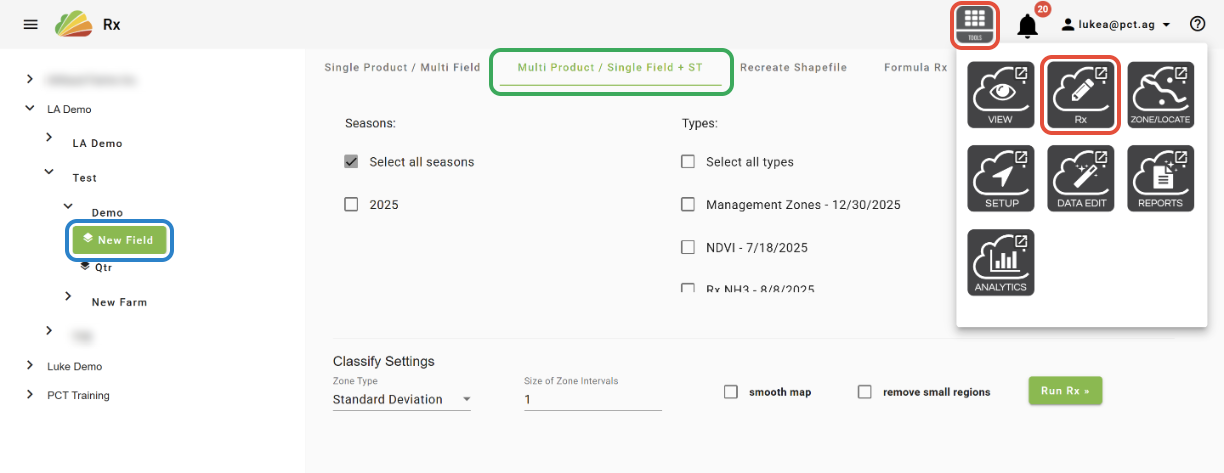
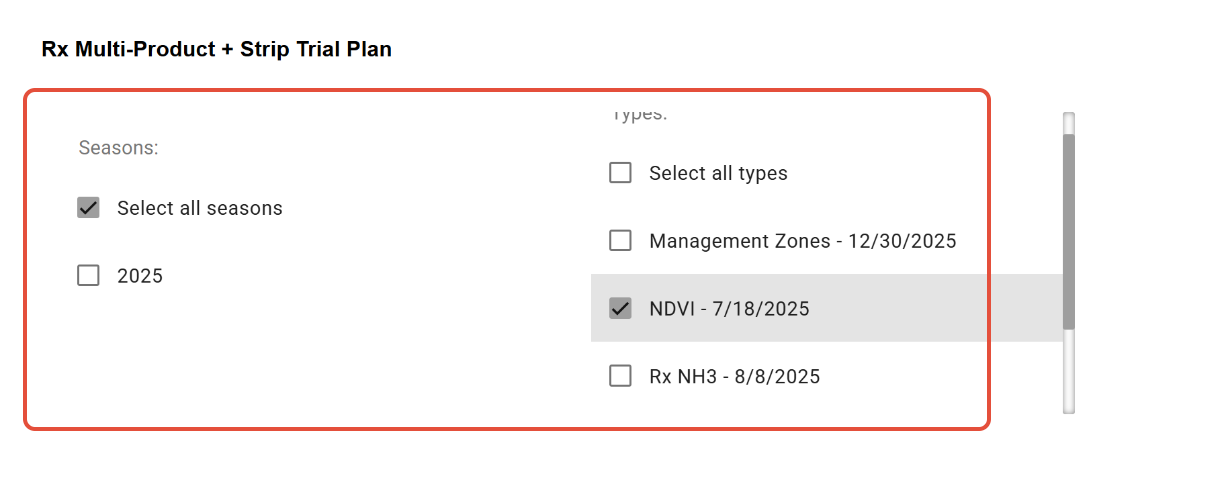
Select Layer
-Use the Season and Type filters to select a layer.
Choose Products
Express
-The 'Express' option for Product Selection provides some additional functionality over the 'Standard' option.
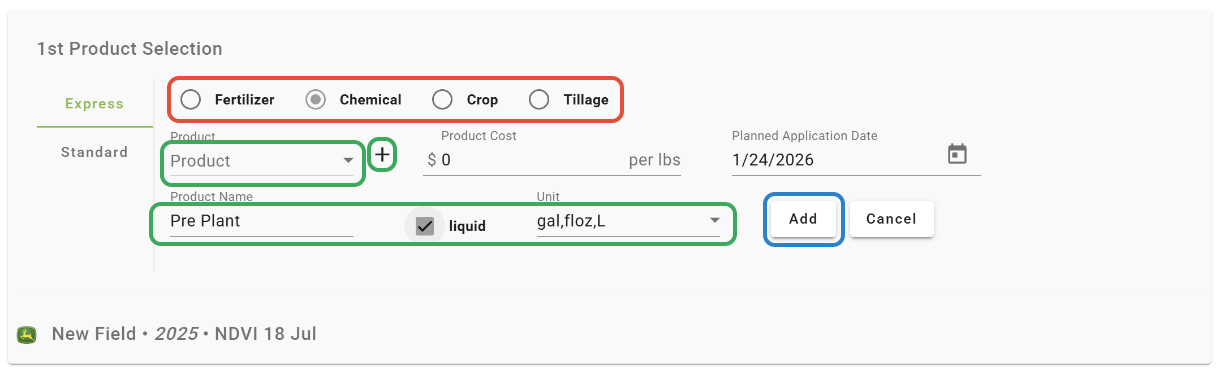
-Select the Product Type.
-Select a Product from the list, or click the '+' button to add a custom Product.
-Click 'Add'.
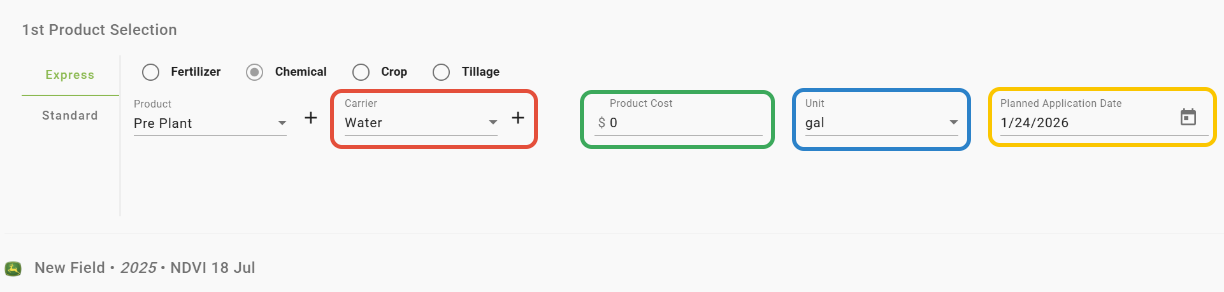
-For Liquid Products, a Carrier can be selected (optional), and the Product and Carrier rates can be entered independently.
-Assign a product cost (optional).
-Select a Unit.
-Set a Planned Application Date; this is the date that the layer(s) will be saved under.
Standard
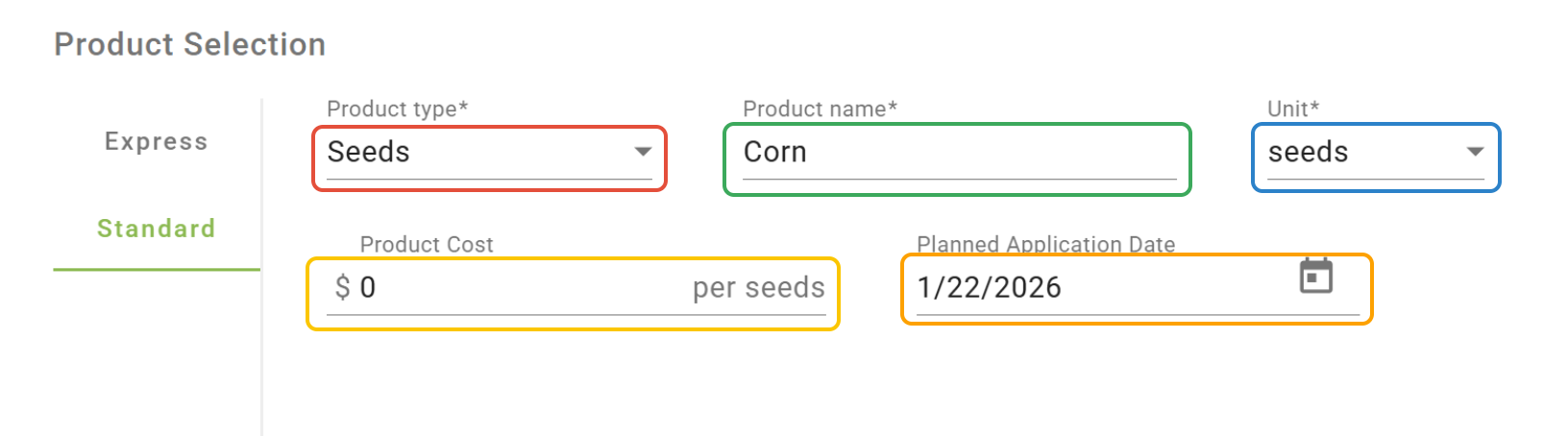
-The 'Standard' option provides a more simplified method of selecting products.
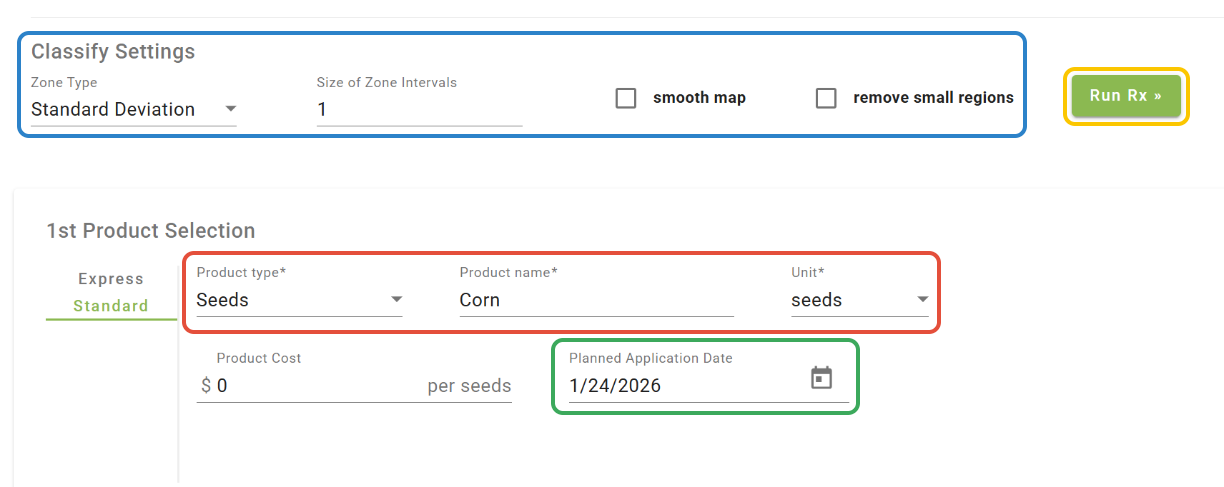
-Select a Product Type.
-Enter a Product Name.
-Select a Unit.
-Enter a Product Cost (optional).
-Set a Planned Application Date; this is the date that the layer(s) will be saved under.
Add Products
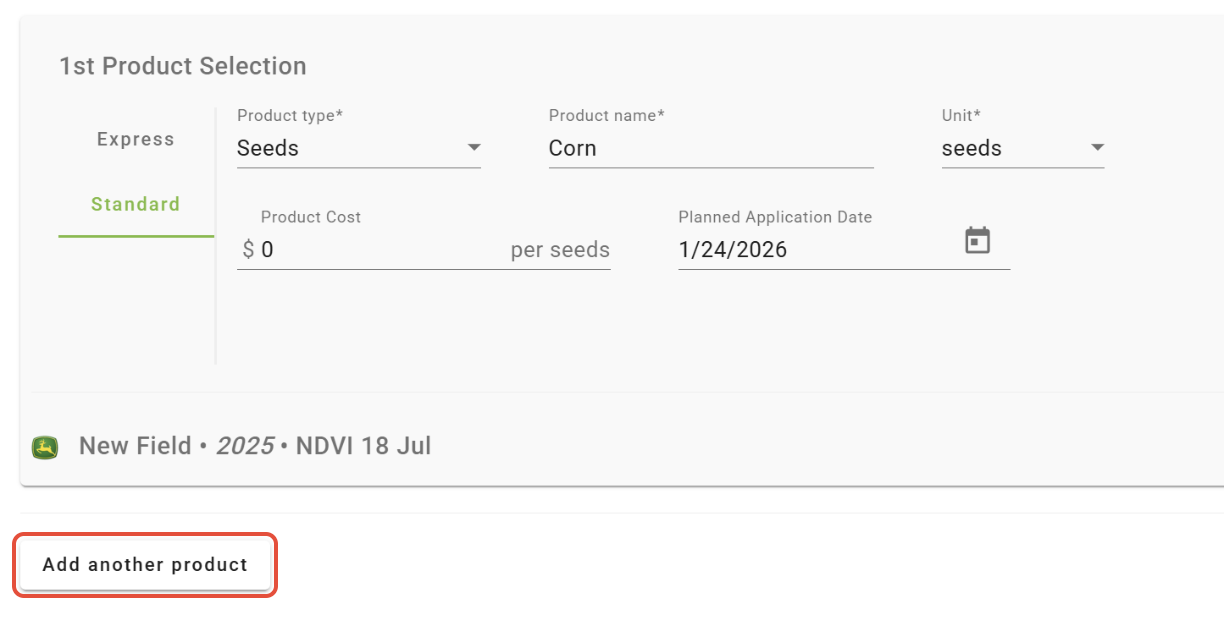
-Click 'Add another product'. (Additional products can be added before or after the creation of layers)
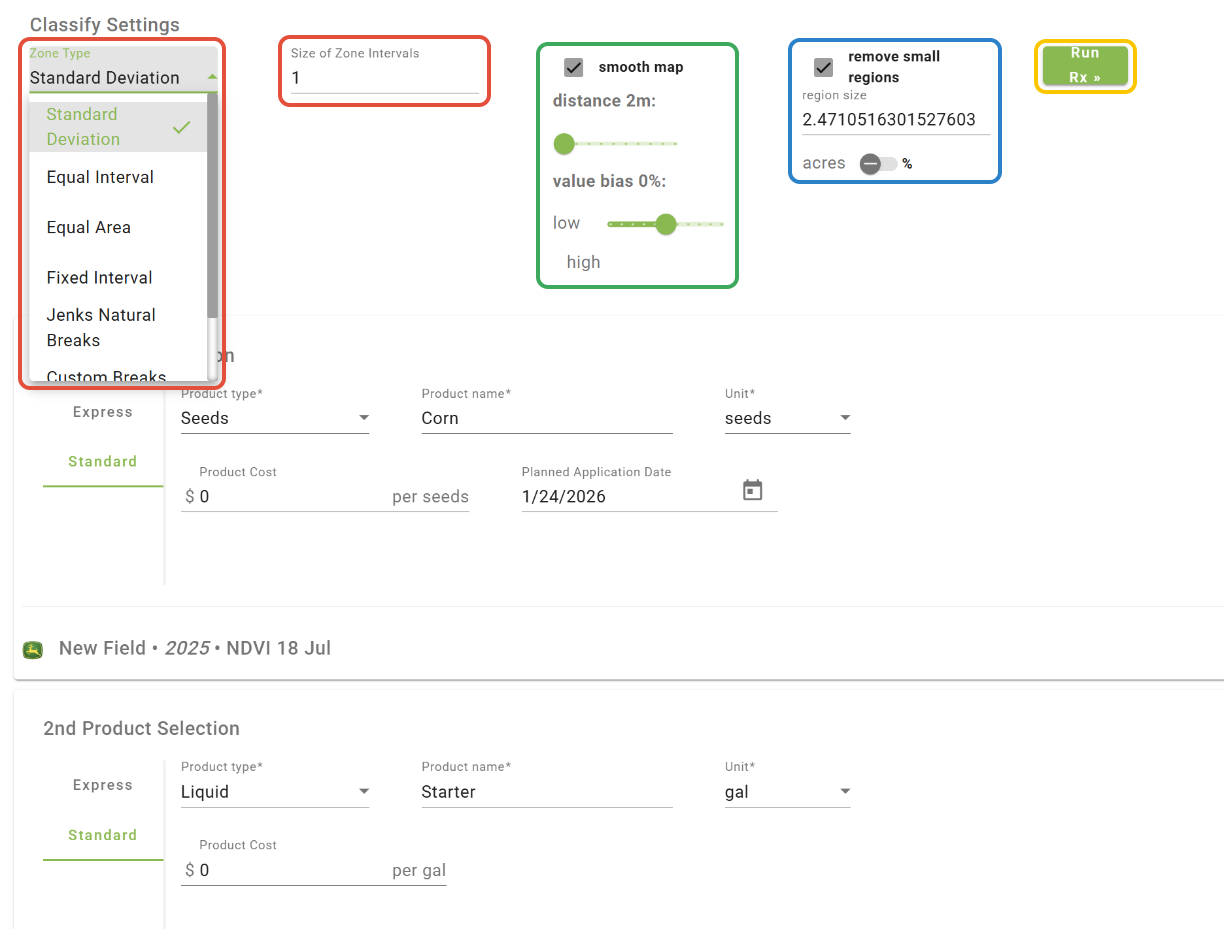
Classify Settings
-The Classify Settings are zoning parameters that will be applied to unzoned layers. When working with zoned layers, the Classify Settings can be ignored.
-Select the Zone Type and the Number or Size of Zone Intervals.
Note: Click HERE to learn more about Zone Types.
-The 'smooth map' option will smooth out the zone polygons. Use the 'distance' and 'value bias' to adjust the amount and extent of the smoothing.
-The 'remove small regions' option allows you to set a minimum polygon size. This can be done by the acre or by field percentage.
-When the zoning settings have been configured and products have been set, click 'Run Rx'.
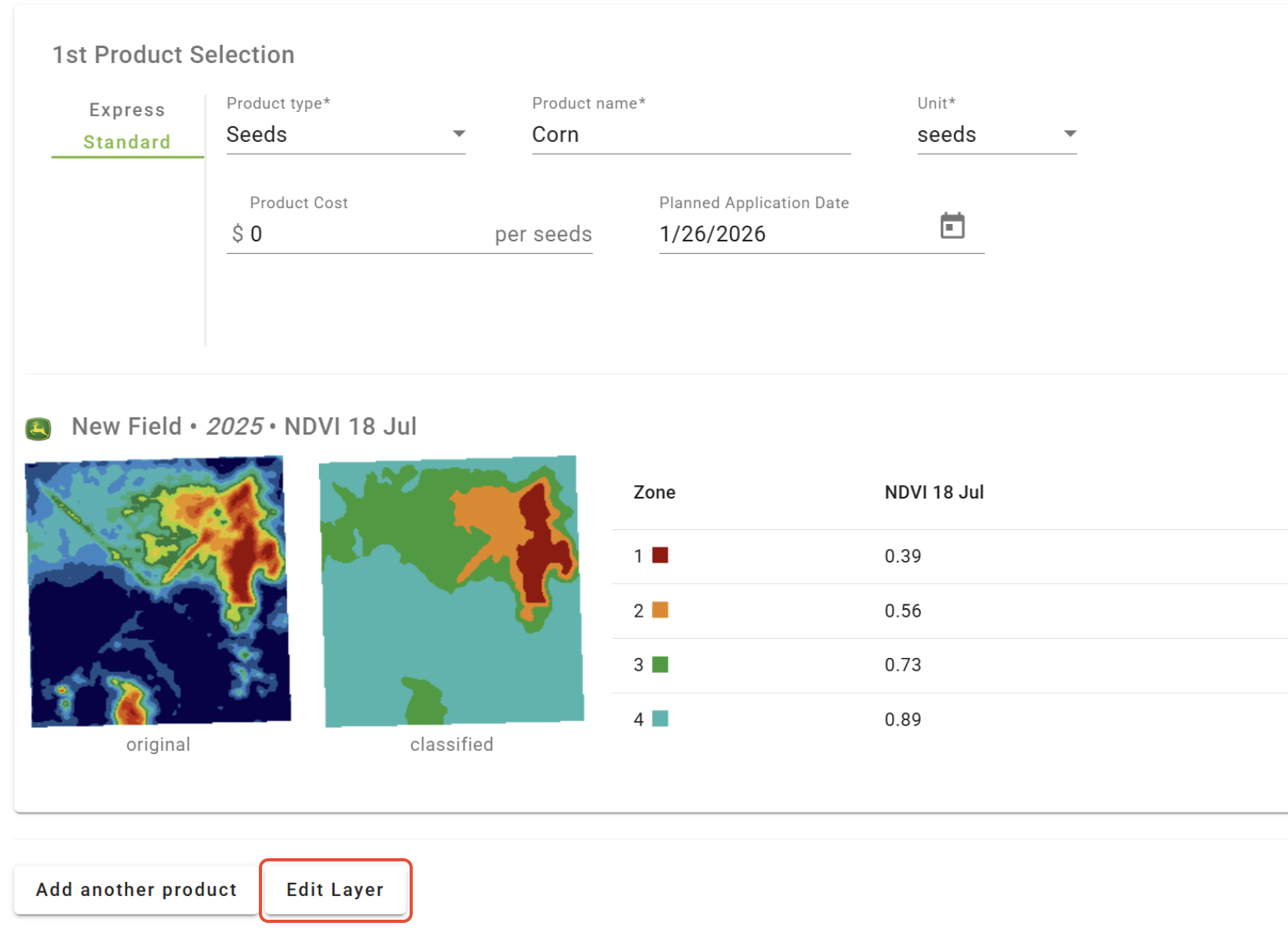
Edit Layer
-After the Rx layers have been created, they can be manually edited. Click the 'Edit Layer' button to access these options. The edits made will be applied to all created Rx layers.
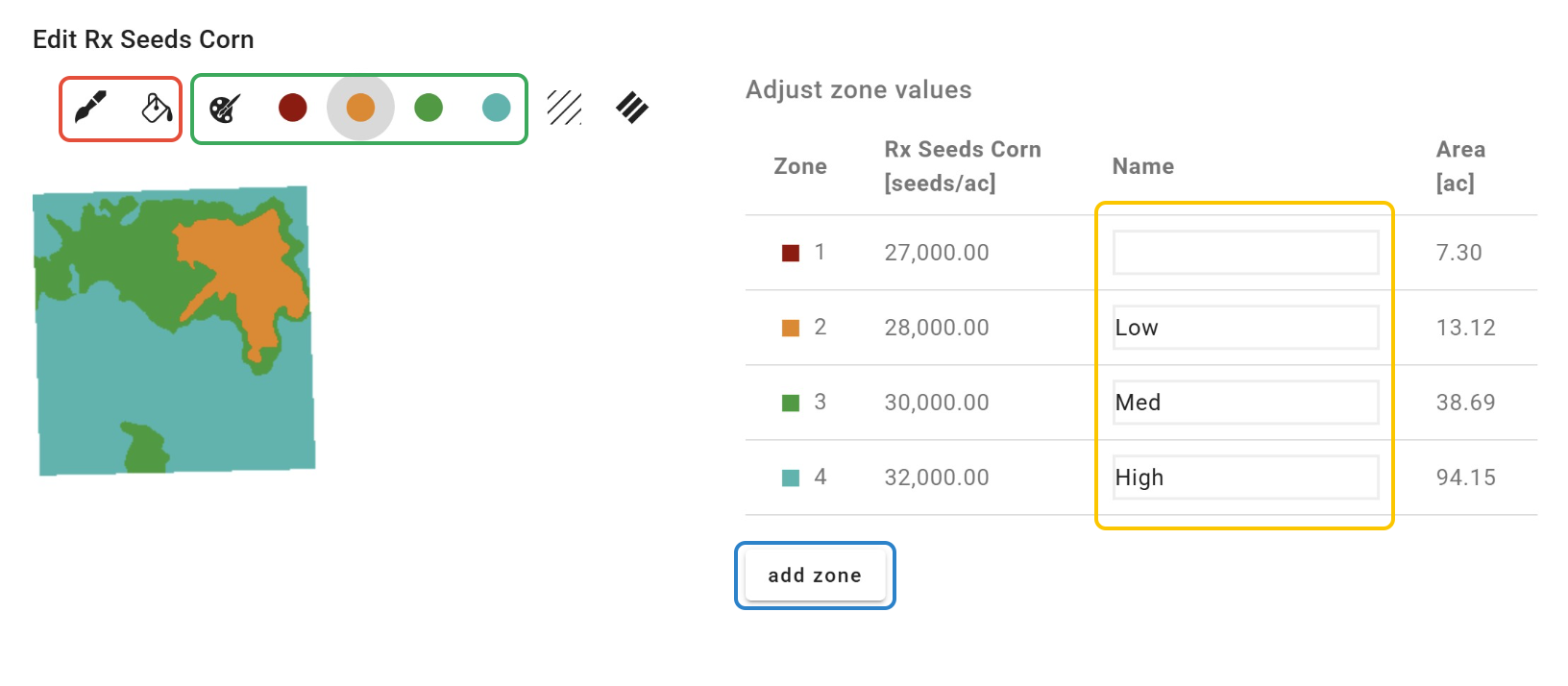
Paint Tools
-The layer(s) can be manually edited with a brush tool and/or a fill tool. The fill tool is useful for merging zones.
-Click the 'Select color' (palette) button to select a color that corresponds to a zone.
-Click the 'add zone' button to draw in a new zone.
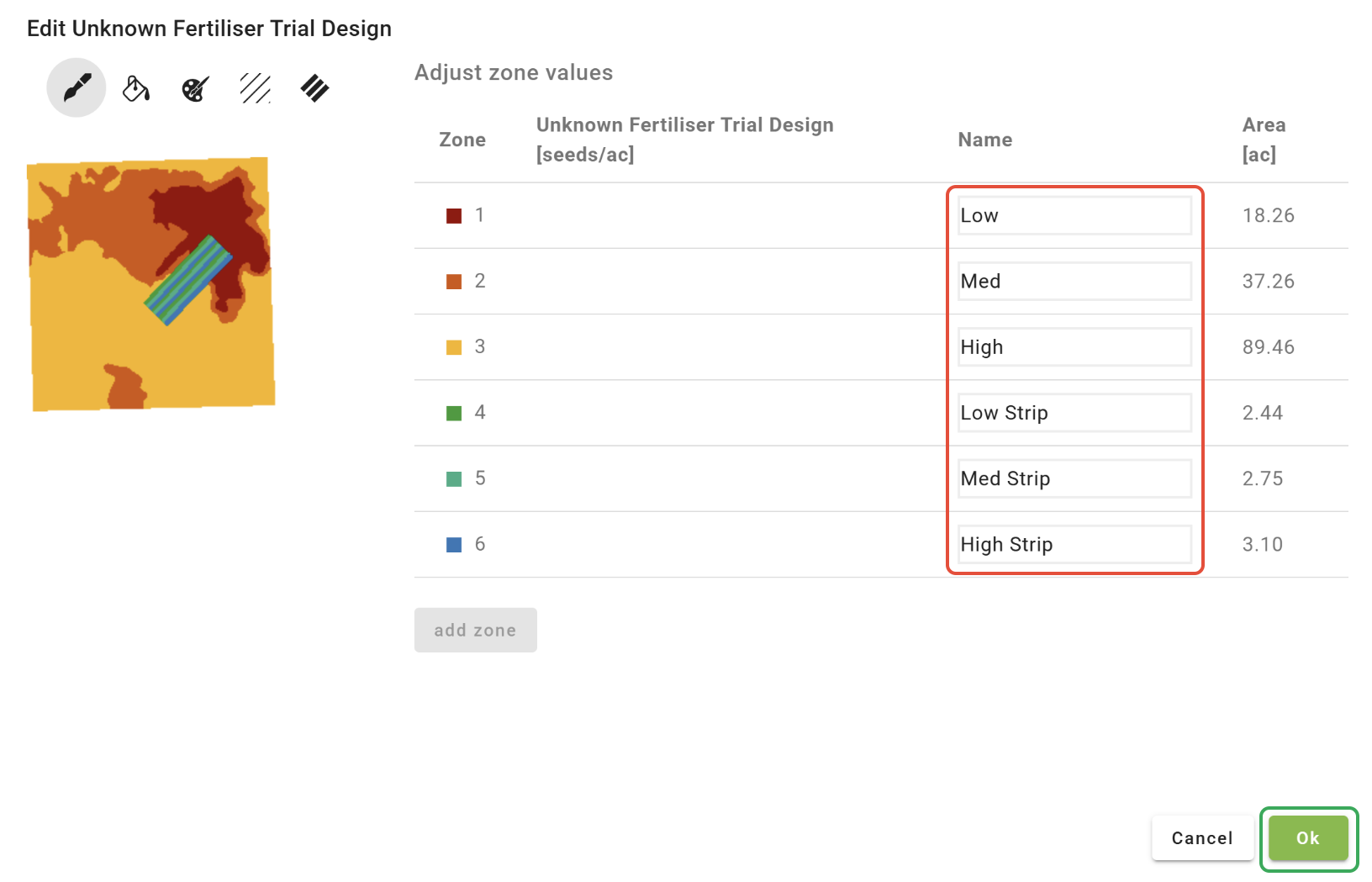
-You must add a name in the name column for the zones to save correctly.
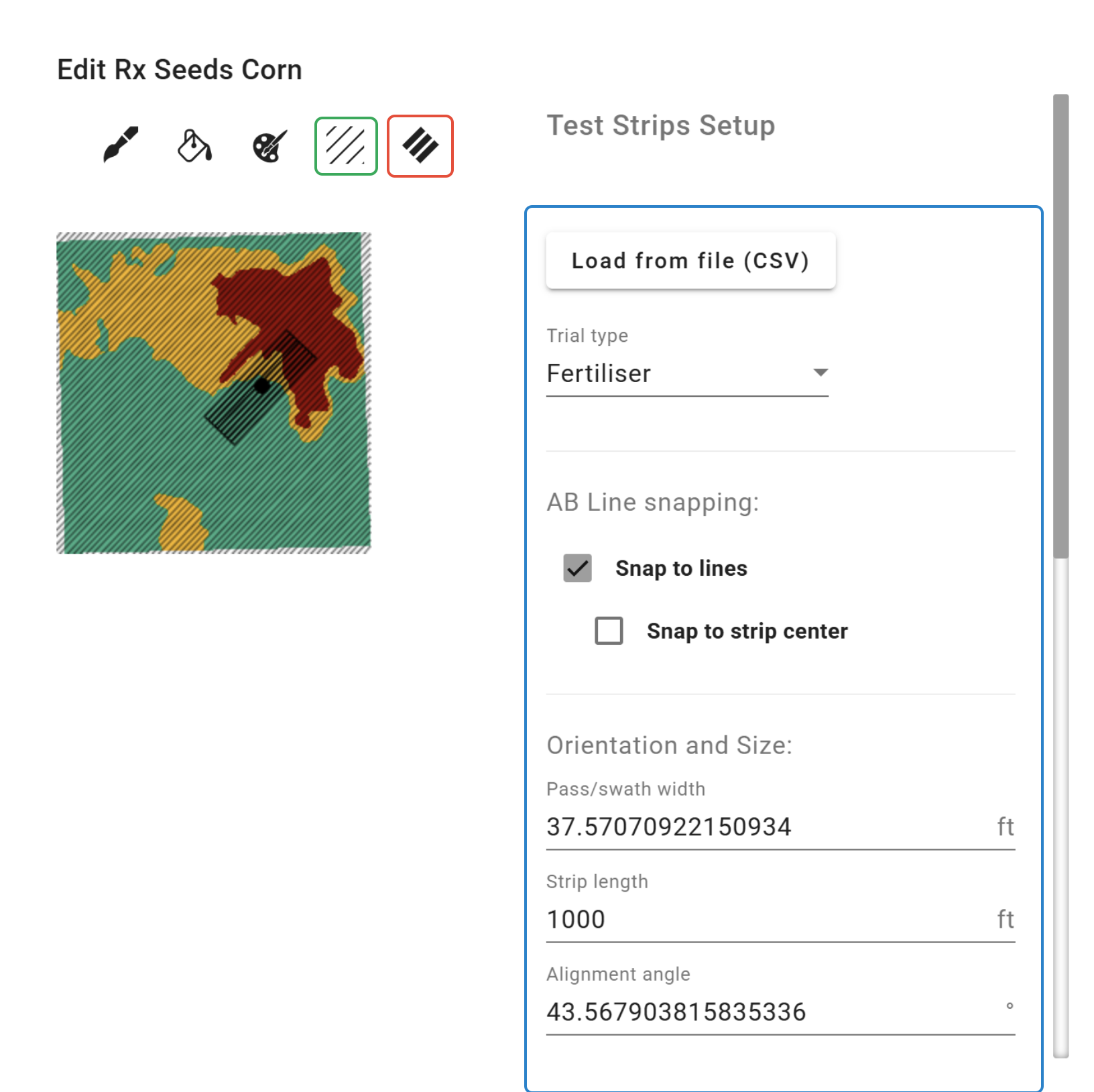
Strip Trial
-Strip trials can be added by clicking the 'Add test strips' button.
-If AB lines are available for the field, these can be displayed and used to align the strips by clicking the 'Show AB lines' button.
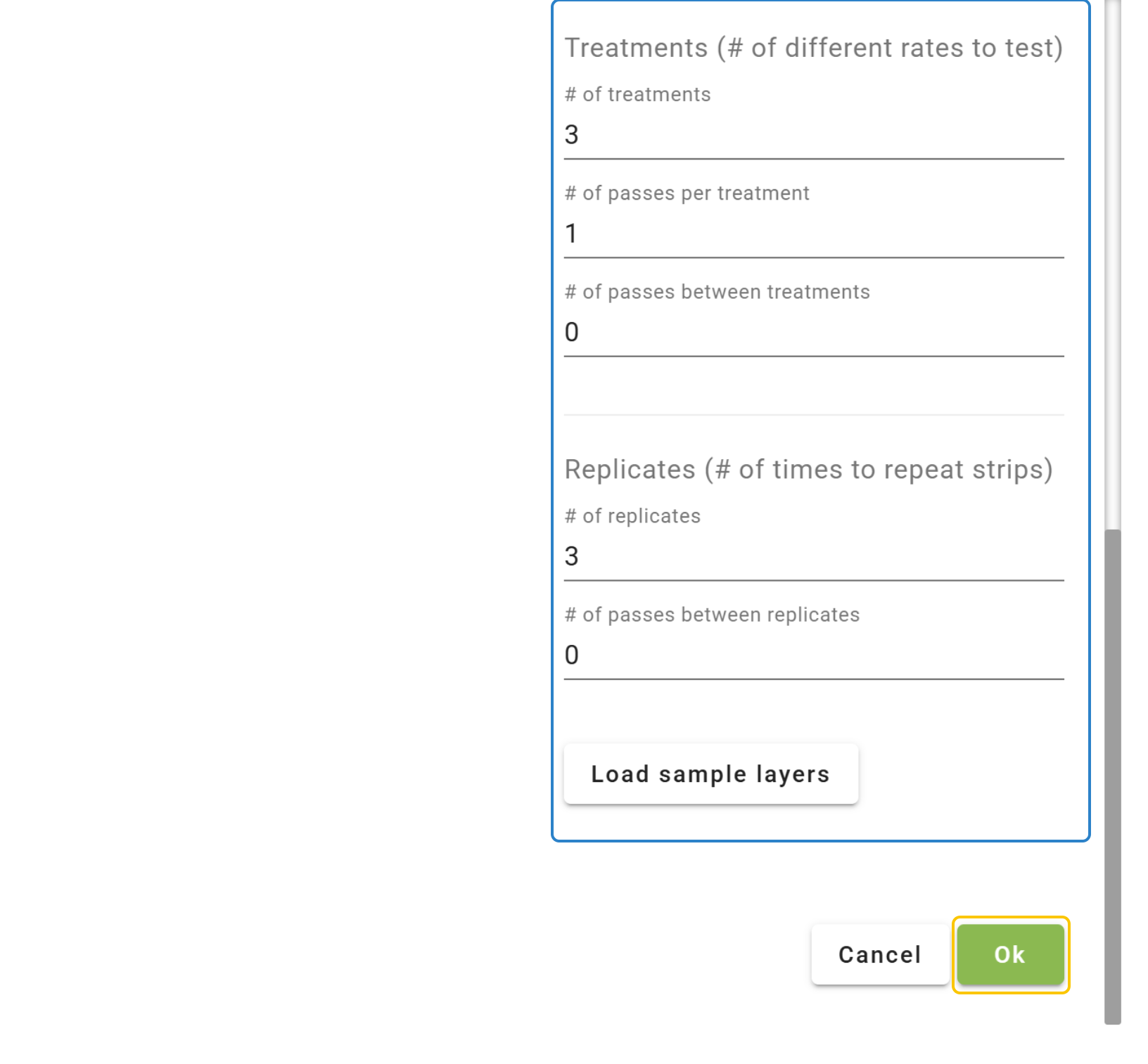
-Configure the trial as needed.
-Click 'Ok' to add the strips to the layer.
-Add names to the strips and zones.
-Click 'Ok'.
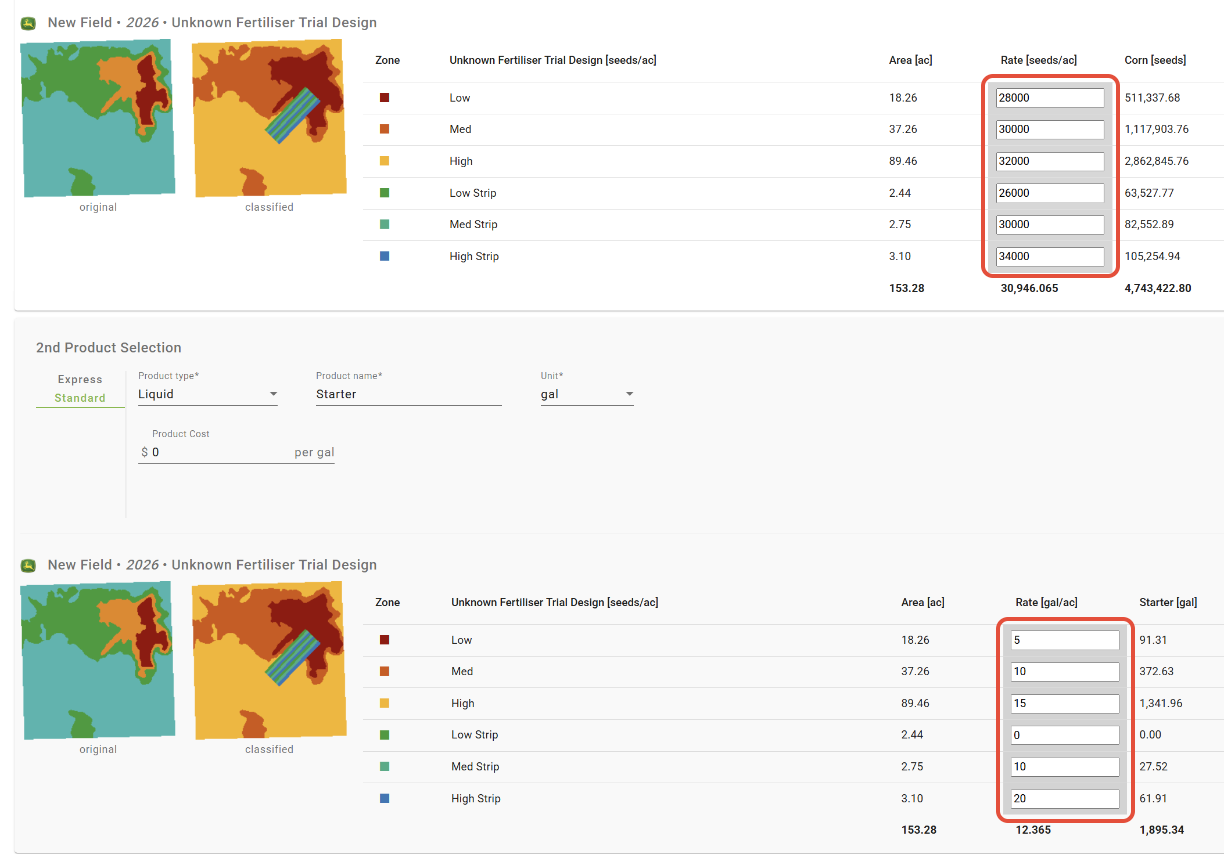
Assign Rates
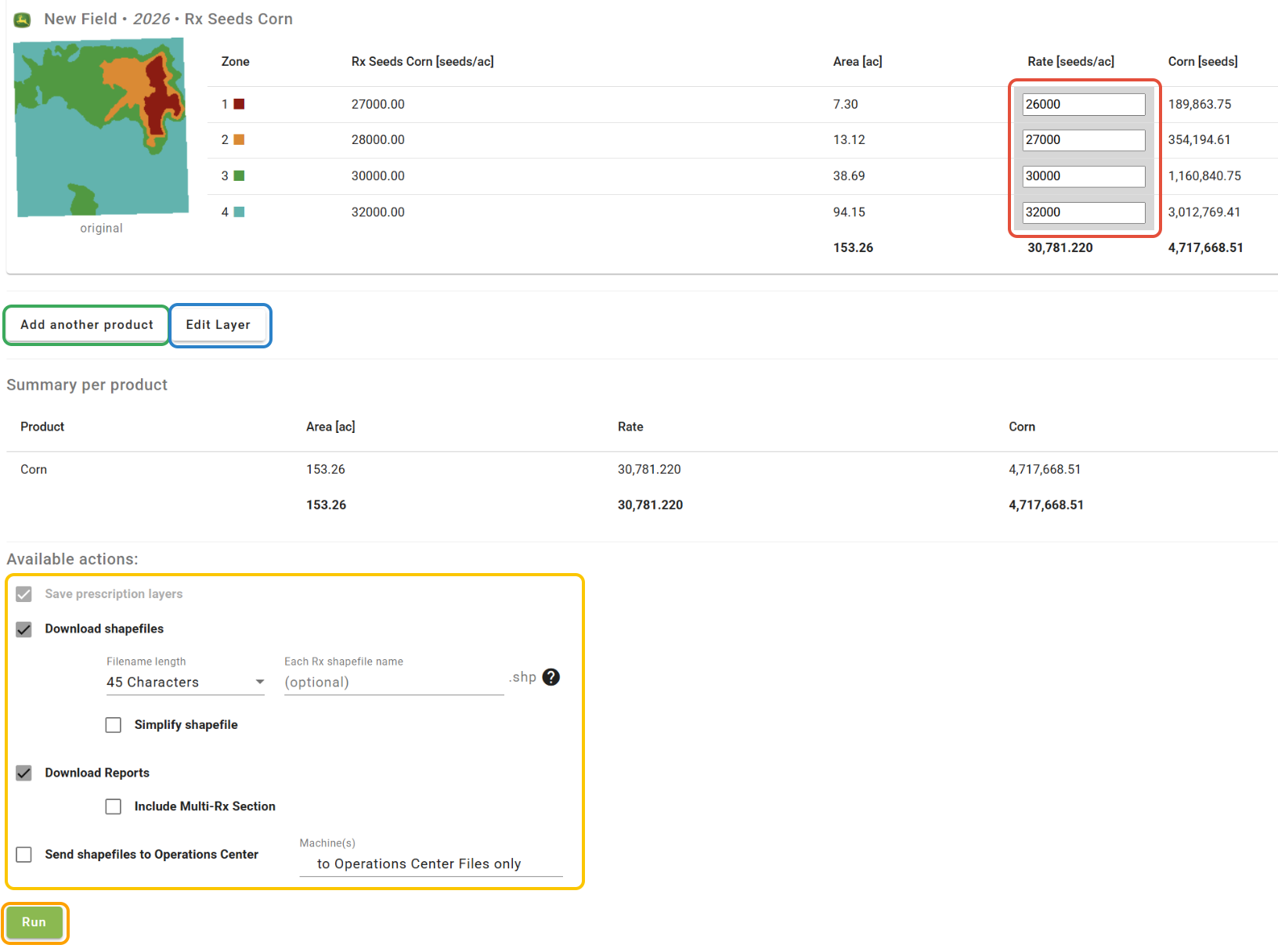
-Enter values for each product under the 'Rate' column.
Save and Export
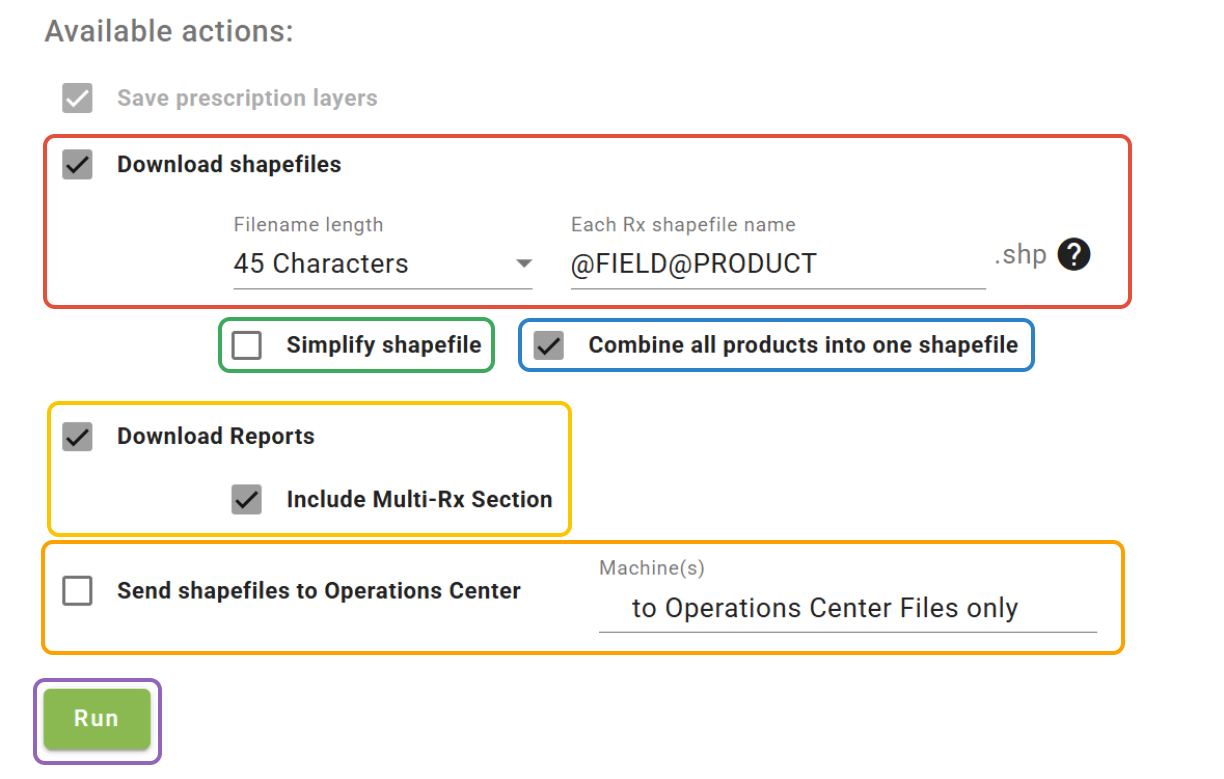
-If you choose to download the Rx shapefiles, you can choose the Filename length (character limit), as well as choose a custom name for the individual files. The default naming format for the files contained within the ZIP file is GrowerFarmFieldProduct. If needed, the filename will be abbreviated in that order. A custom name can be entered for the individual files, or a template of sorts can be made by using the @ sign to specify which naming components should be included in the filename. This template will be saved for the next time the tool is opened.
- 'Simplify shapefile' will reduce the number of points per polygon and the file size. This can be particularly useful for older monitors.
- When multiple product Rx's have been created, you can choose to combine all products into a single shapefile; this will combine the reports as well.
- Check the 'Download Reports' box to download .pdf reports for the selected Rx layers. Check the 'Include Multi-Rx Section' box to include a multi-product summary page at the end of the report.
- Check the 'Send shapefiles to Operations Center™' box to send the Rx's to the files page within Operations Center™. Select machines from the dropdown to send the Rx's directly to machines.
- When finished, click 'Run'.
Edit
-To edit an Rx layer created in the Single Product Rx tool, load the layer in the 'Layers' tab of the View tool.
-Open the 'Options' menu.
-Select 'Run Rx on this layer' and click 'Multi Product Rx'. 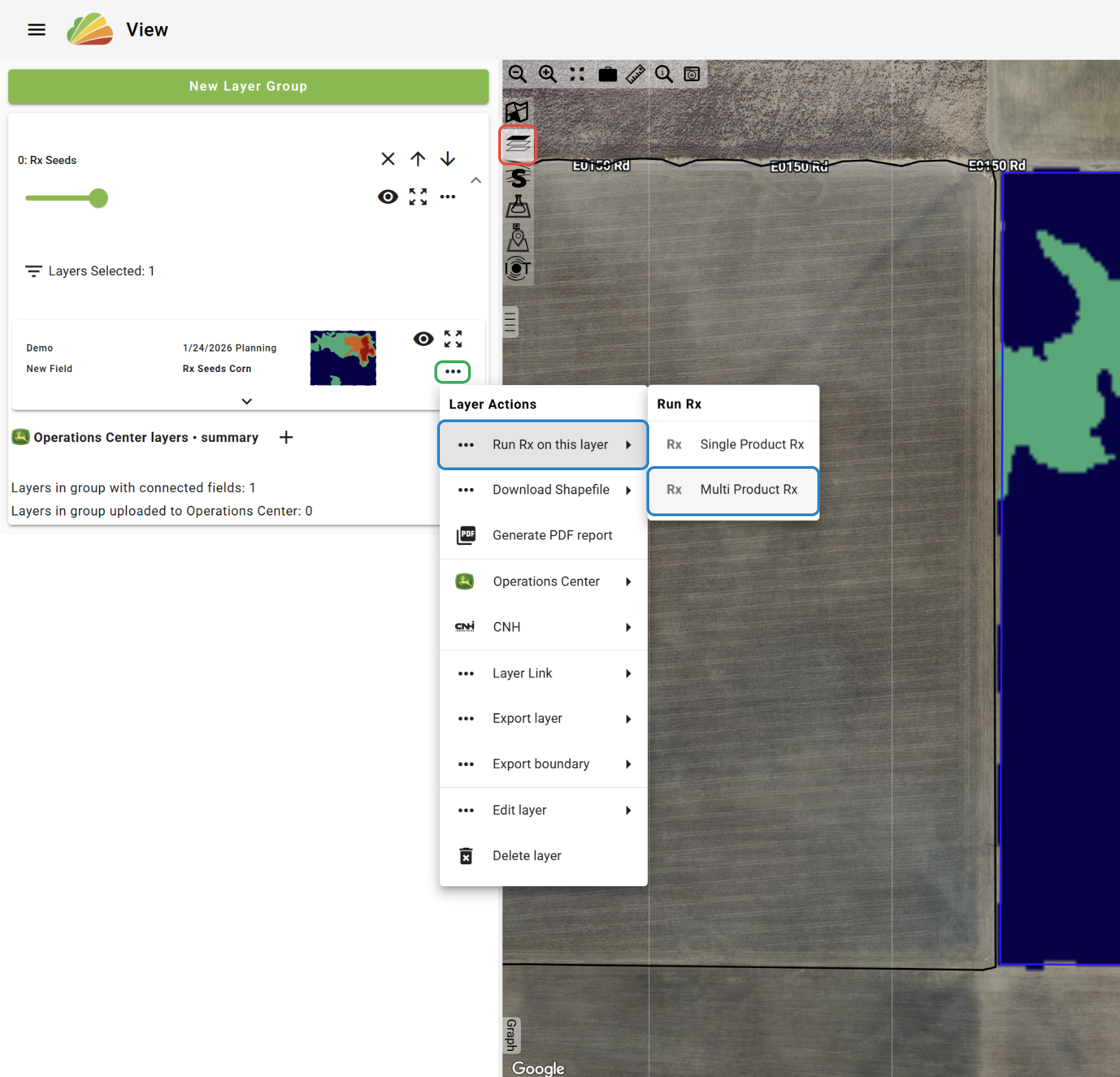
-Select a Product.
-To overwrite the original layer, choose the same Product and Planned Application Date. To save the edited Rx as a new layer, change the Product or the Planned Application Date.
-The Classify Settings can be ignored.
-Click 'Run Rx'.
-The rates of the original Rx will appear in the 'Rate' column. Edit the rates as needed.
-Click 'Add another product' if additional products are needed.
-Click 'Edit Layer' if needed.
-Configure the export settings as needed.
-Click 'Run'.
Was this article helpful?
That’s Great!
Thank you for your feedback
Sorry! We couldn't be helpful
Thank you for your feedback
Feedback sent
We appreciate your effort and will try to fix the article