Linking to Case/New Holland FieldOps™

Created by PCT Agcloud Support, Modified on Mon, 23 Mar at 5:15 PM by PCT Agcloud Support

Follow the steps below to link your PCT Agcloud account to your Case or New Holland FieldOps account. 

-Note: Only one account can be linked at a time.


Connect Accounts


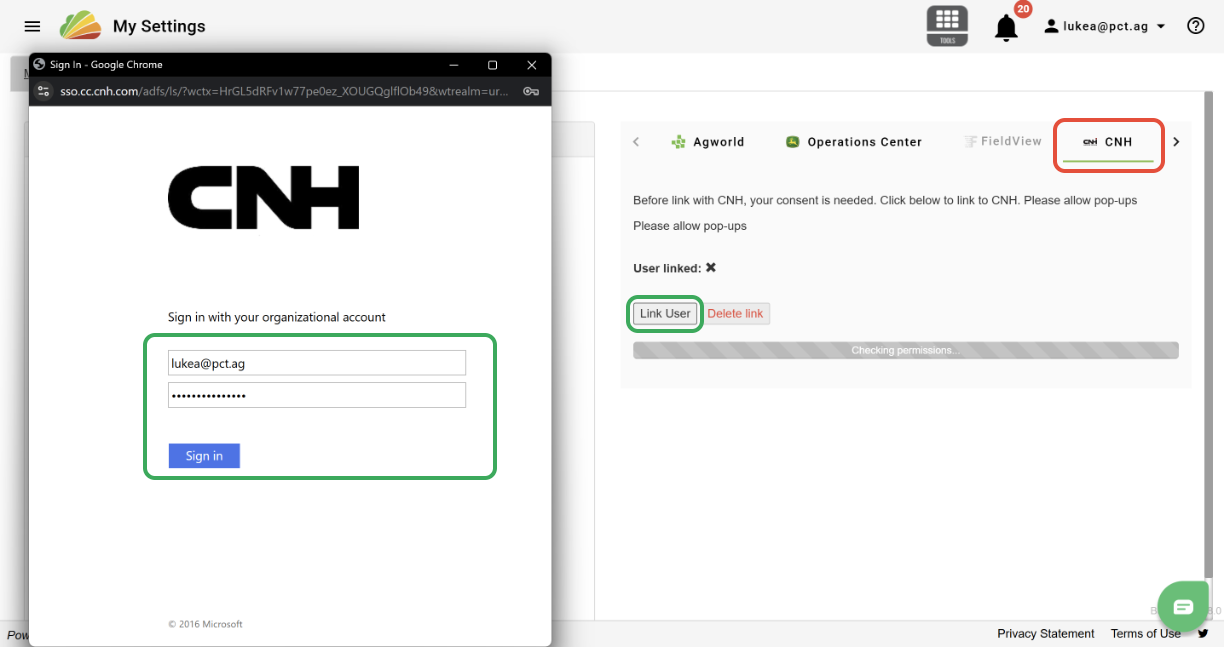
1. In the My Settings page, click the 'CNH' tab.

2. Click the 'Link User' button. If you are already logged into FieldOps™, the link will be established automatically. If not, a pop-up window will appear, and your FieldOps login can be entered. 


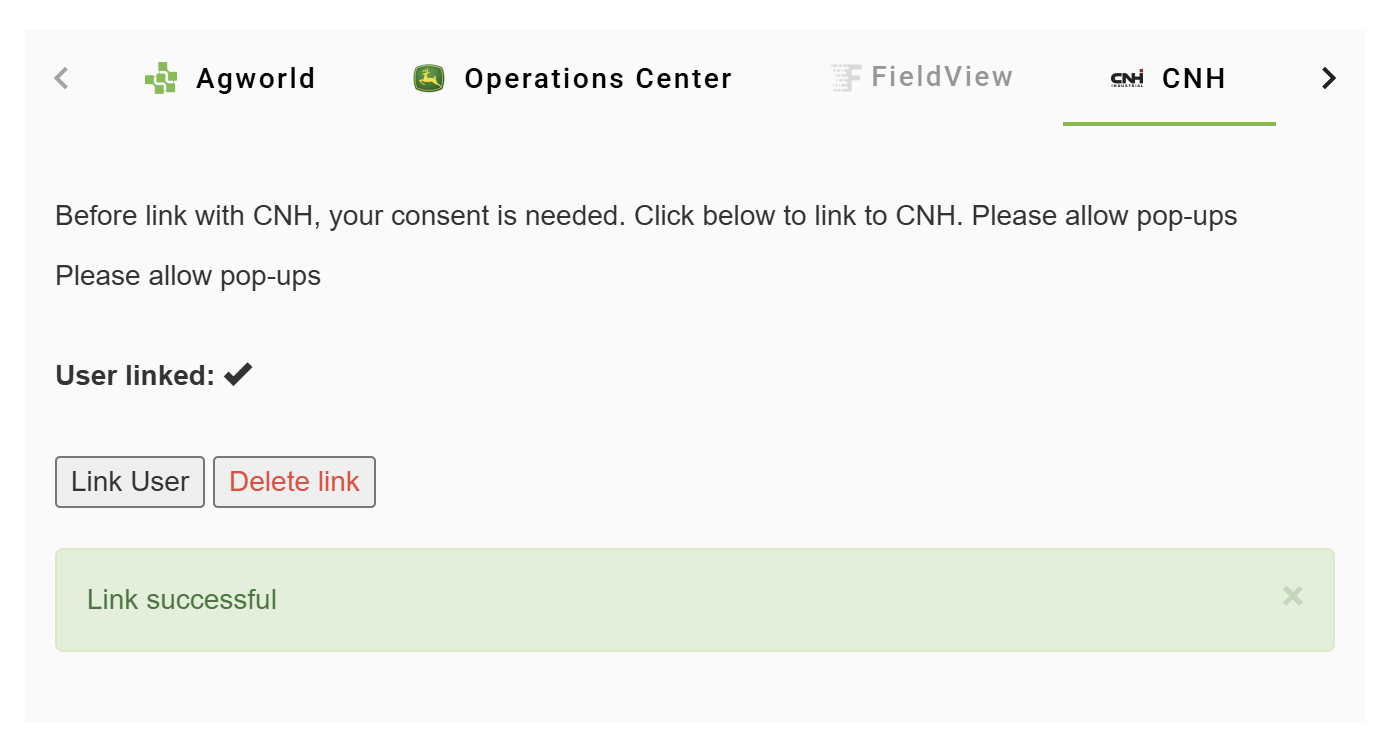
3. If the link is established successfully, a check mark will be displayed next to the "User linked" status, and a "Link successful" message will be displayed. 


Link Growers


Growers can be linked so that data is automatically imported from FieldOps to Agcloud.  


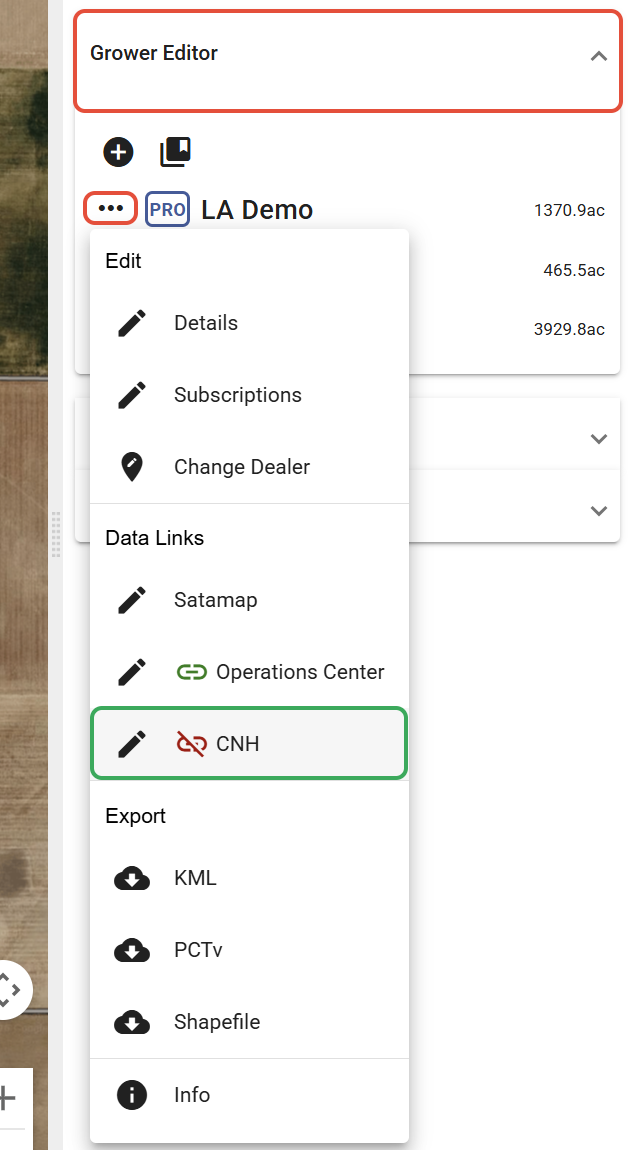
1. In the Setup tool, select the 'Grower Editor' dropdown and click the '...' button next to the Grower that you would like to link a FieldOps™ company to.

2. Click the 'CNH' button. 

3. Select the company from the dropdown.

4. Then click 'Link to CNH'. 
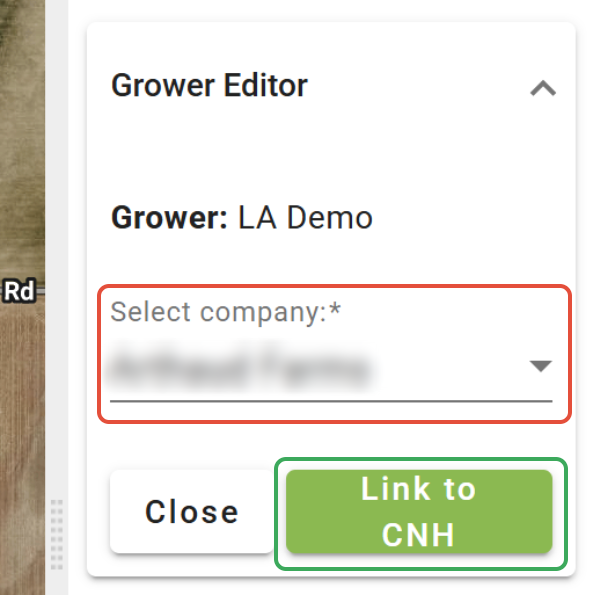

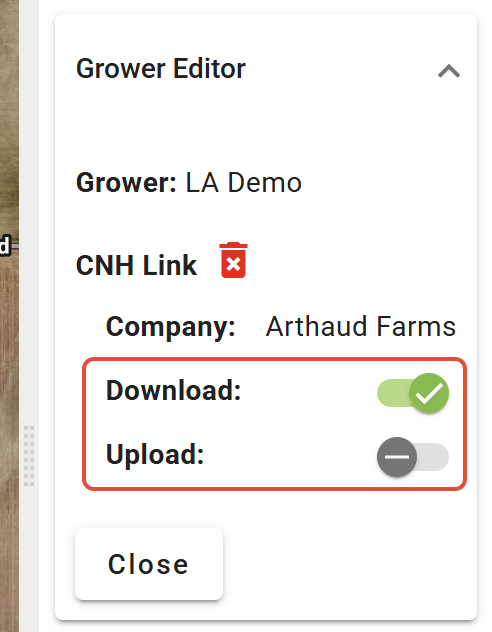
5. Select the auto-upload or auto-download options. The download option will automatically import new data from FieldOps daily. The upload option will automatically upload prescriptions to FieldOps once they are created. 


Link Fields


Fields can be linked to FieldOps to enable the sending of prescriptions for those fields either automatically or manually.


1. In the Setup tool, open the Field Editor dropdown. 

2. Click on the 'Import Fields' button.

3. Click 'from CNH'.


4. Select the Import Level.

  • 'Dealer' will link all selected Growers, Farms, and Fields with matching names.
  • 'Grower' will link the selected Farms and Fields from FieldOps™ under the Grower selected in the DGFF tree.
  • 'Farm' will link the selected Fields from FieldOps™ under the Farm selected in the "Farm" dropdown. The options available in the dropdown are dependent on the Grower selected in the DGFF tree. 

5. Select the FieldOps™ Company.

'Overwrite Boundary' - When checked, if an equivalent Field already exists in Agcloud, it will be overwritten with the FieldOps™ boundary. If unselected, the Fields will be linked, but the boundaries will not change.

'Only link existing' - It is recommended to have this checked when linking. When checked, any Fields from FieldOps™ that match Field names (and Grower names and Farm names, depending on the Import Level) will be linked with the equivalent fields in Agcloud. Any Fields that do not match will not be imported. In other words, new fields will not be created if this option is selected. This can be used as a check to see if the names match exactly in both systems.

6. Select the Clients, Farms, and Fields to link from FieldOps™.

7. Click 'Import'.

Was this article helpful?

That’s Great!

Thank you for your feedback

Sorry! We couldn't be helpful

Thank you for your feedback

Let us know how can we improve this article!

Select at least one of the reasons
CAPTCHA verification is required.

Feedback sent

We appreciate your effort and will try to fix the article