Combining production data, such as Yield and Imagery, is a popular method for creating zones or making new data layers.
PCT Agcloud Analytics takes this a step further by creating a correlation matrix to observe if the layers correlate before combining. These correlations allow users to determine if data layers actually correlate and create a confidence level of low, medium, or high.
Combining data this way should always be carried out with caution.
There are two options for running Yield Analytics, both of which are explained below. In both examples, Yield, Imagery, and other layers are available to be included in the analysis.
There are also options for manually editing the resulting layers within the tool. Those options will be explained as well.
See the video and article below to learn more.
TABLE OF CONTENTS
Yield Average
Yield Average layers are created when multiple Yield layers of the same crop are selected. Yield Average layers are surfaced as continuous layers, but can be zoned. Yield Sum layers are also generated using this process.
Steps:
1. In the Analytics tool under the 'Yield' tab, select the desired Field.
2. Select the desired Yield layers with a shared crop.
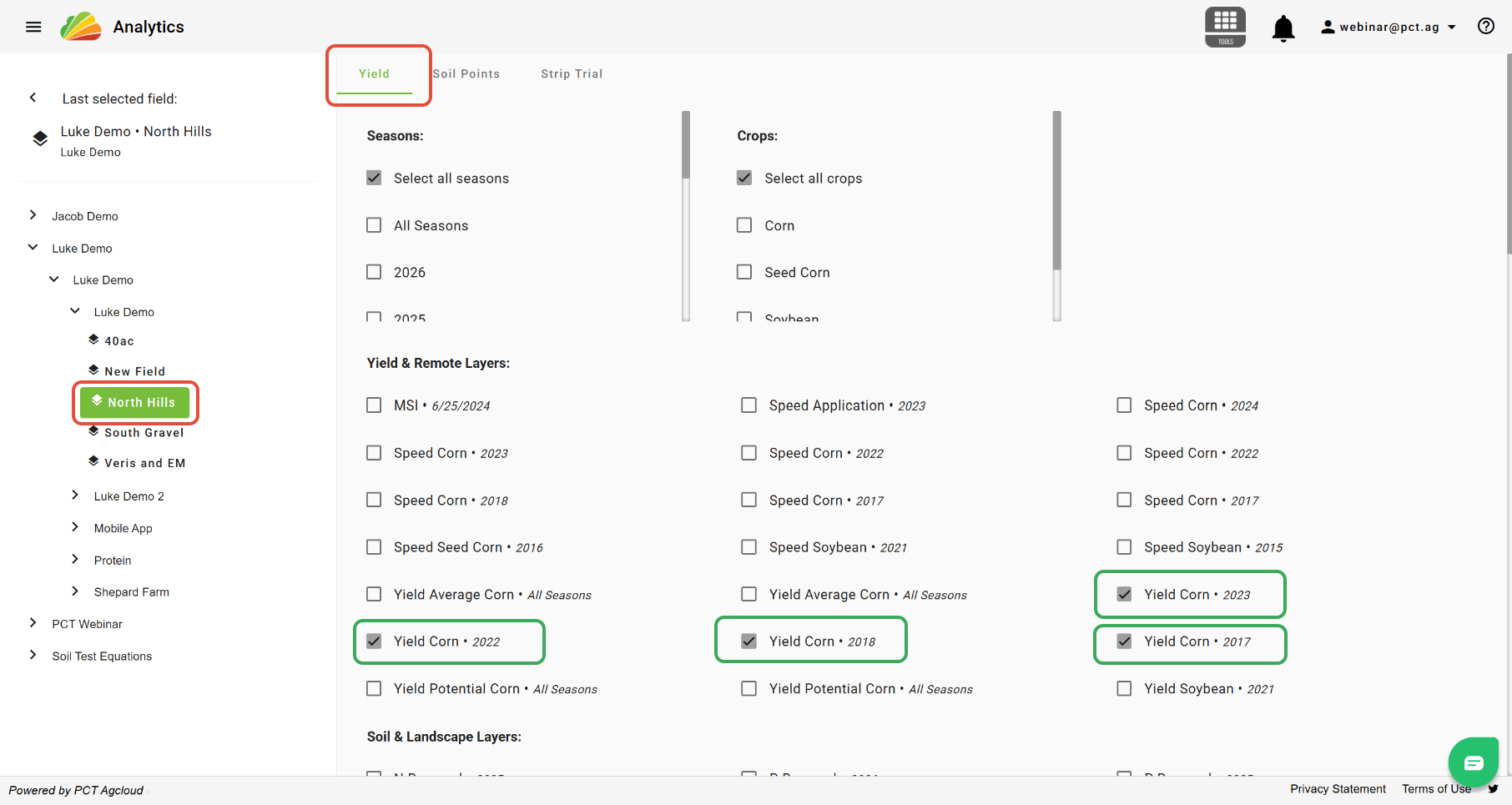
3. Click 'Run Analysis'.
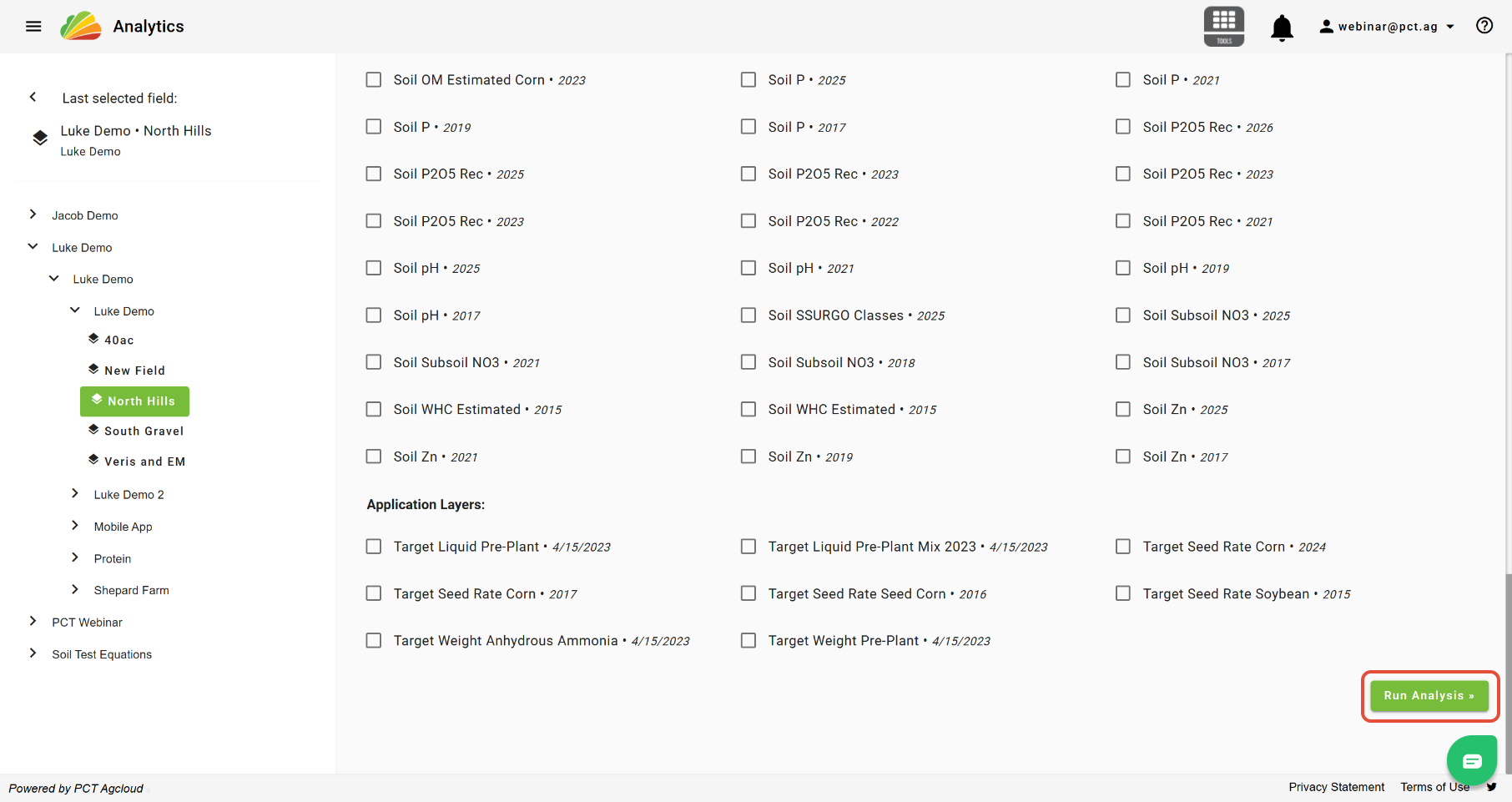
4. Analyze the results of the comparison. R-squares <0.3 will be represented by a red line, between >0.3 and <0.6 will be represented by a yellow line, and >0.6 will be represented by a green line. Layers that consistently have an R-square value of <0.3 are not recommended to be included in the creation of a combined layer, and layers that consistently have an R-Square value between 0.3 and 0.6 should be used with caution.
5. The results can be filtered, or the regression type can be changed with the options on the left. To do so, choose an option, then click 'Update'.
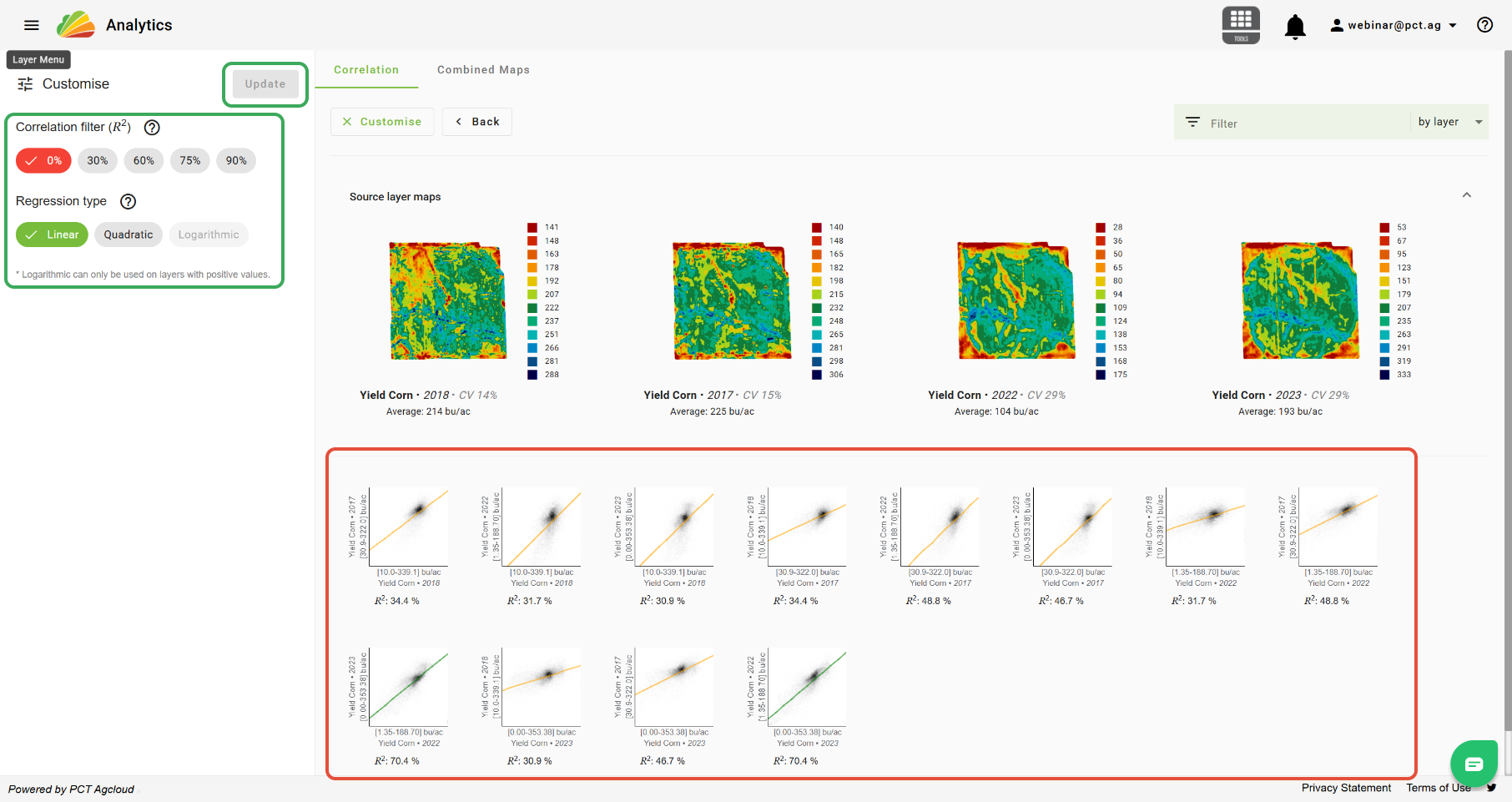
6. Click the 'Combined Maps' tab.
7. You can choose to save the Yield Average and/or Yield Sum maps, or you can zone the Yield Average map. After zoning settings have been applied, other layer editing options become available; more on this below.
Yield Potential
Yield Potential layers are created when multiple Yield layers of different crops or multiple different layer types are selected. In this case, the selected layers will be normalized in order to be compared against one another.
Steps:
1. In the Analytics tool under the 'Yield' tab, select the desired Field.
2. Select the desired layers.
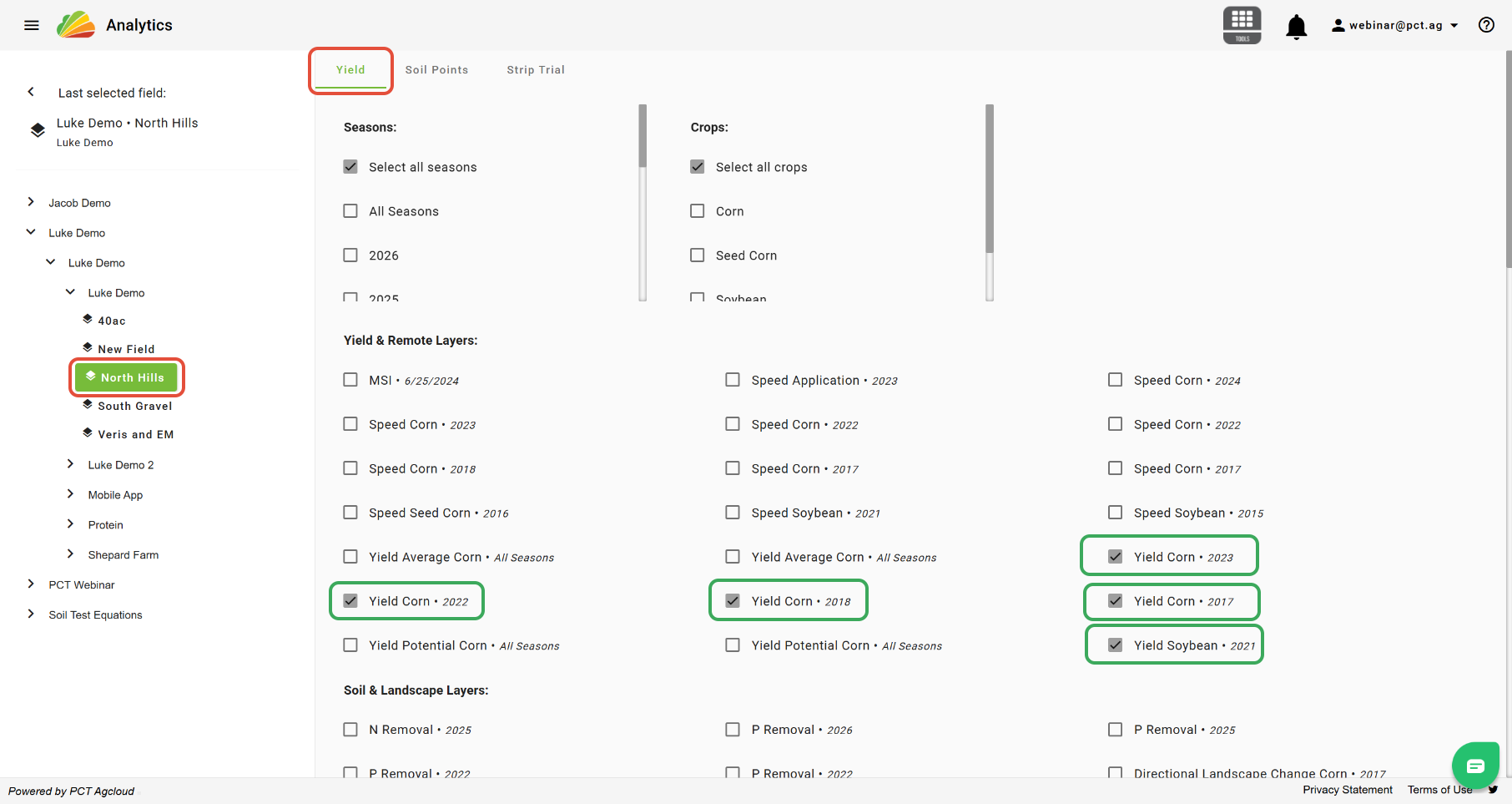
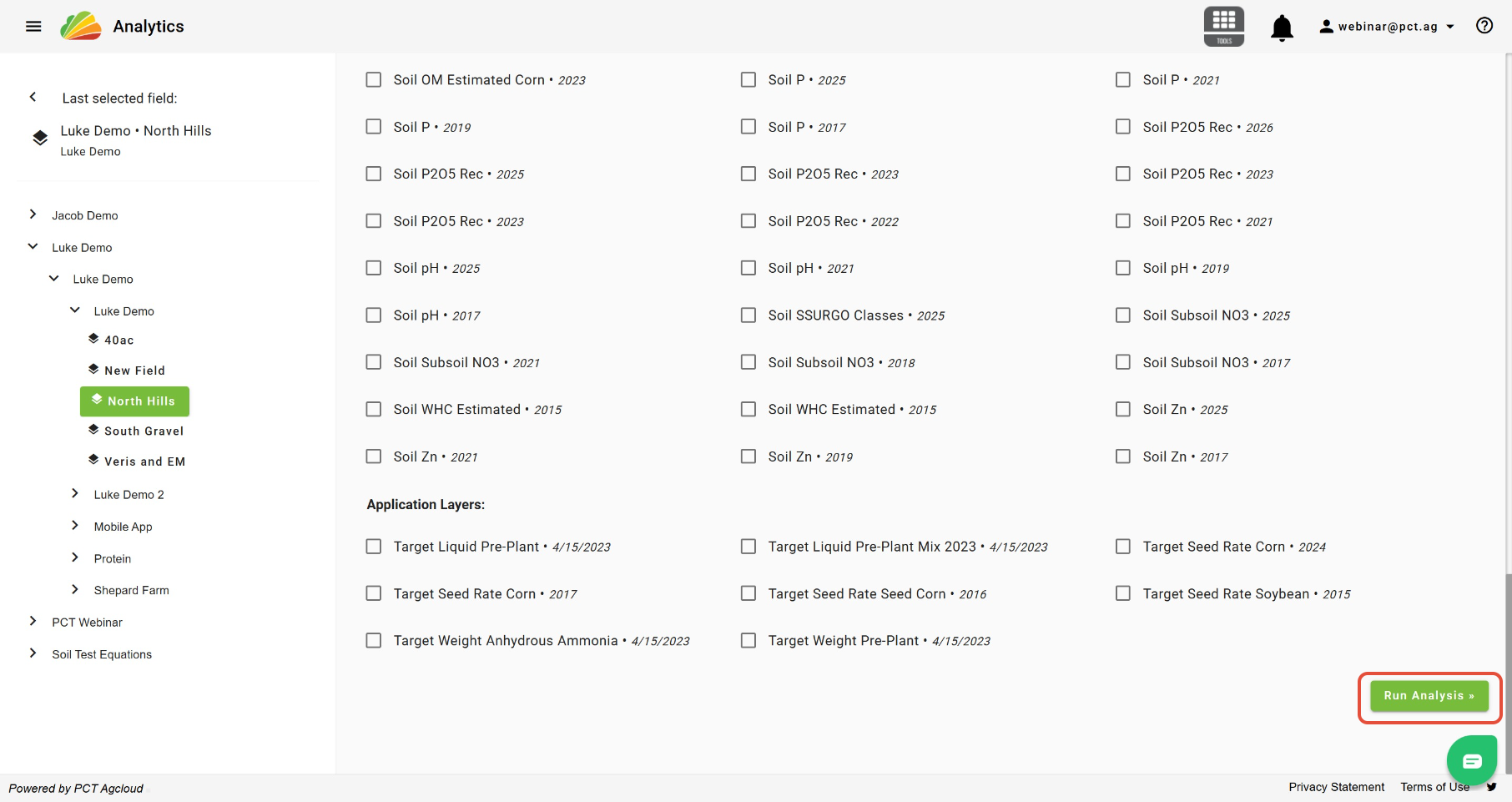
3. Click 'Run Analysis'.
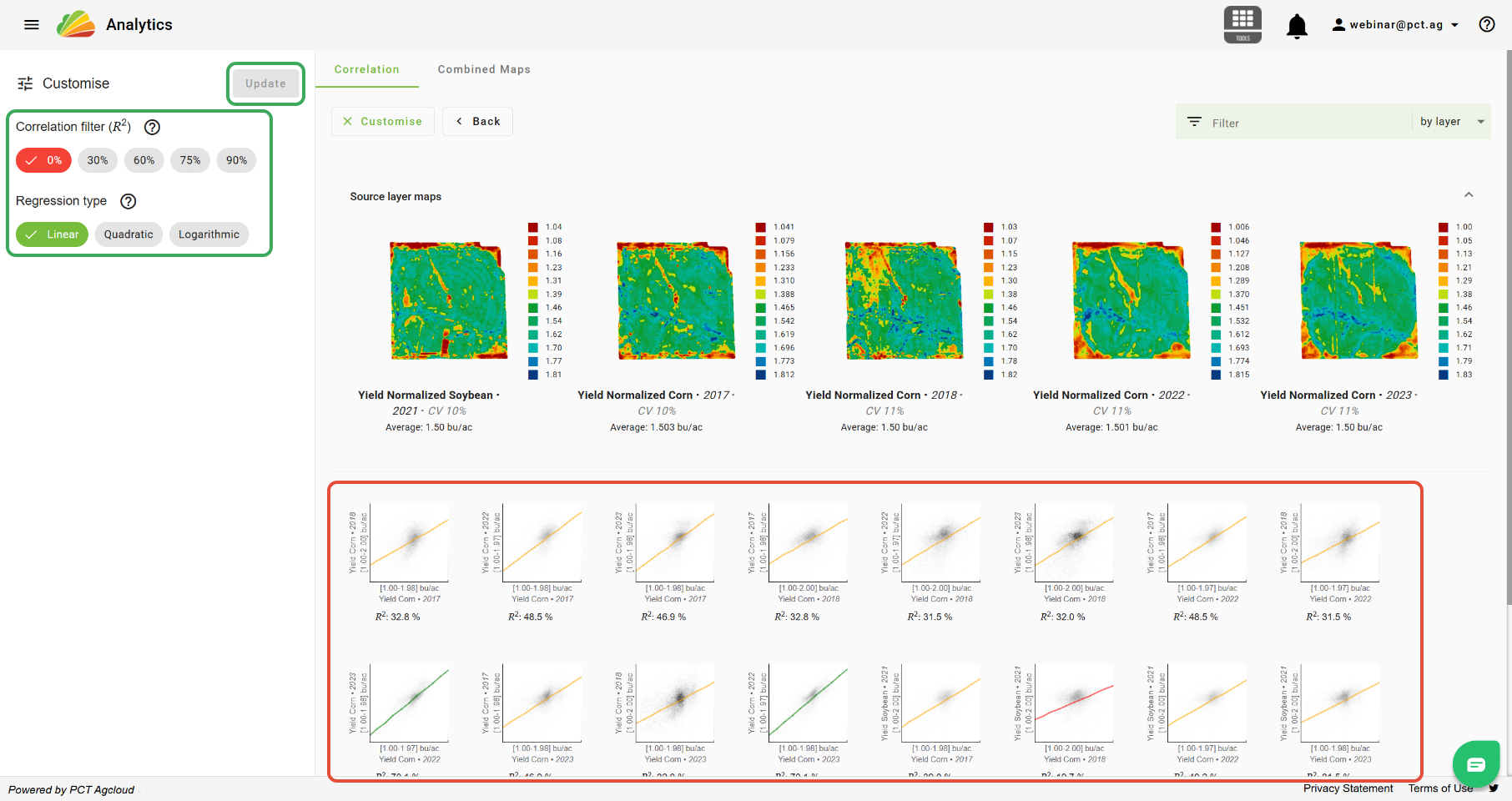
4. Analyze the results of the comparison. R-squares <0.3 will be represented by a red line, between >0.3 and <0.6 will be represented by a yellow line, and >0.6 will be represented by a green line. Layers that consistently have an R-square value of <0.3 are not recommended to be included in the creation of a combined layer, and layers that consistently have an R-Square value between 0.3 and 0.6 should be used with caution.
5. The results can be filtered, or the regression type can be changed with the options on the left. To do so, choose an option, then click 'Update'.
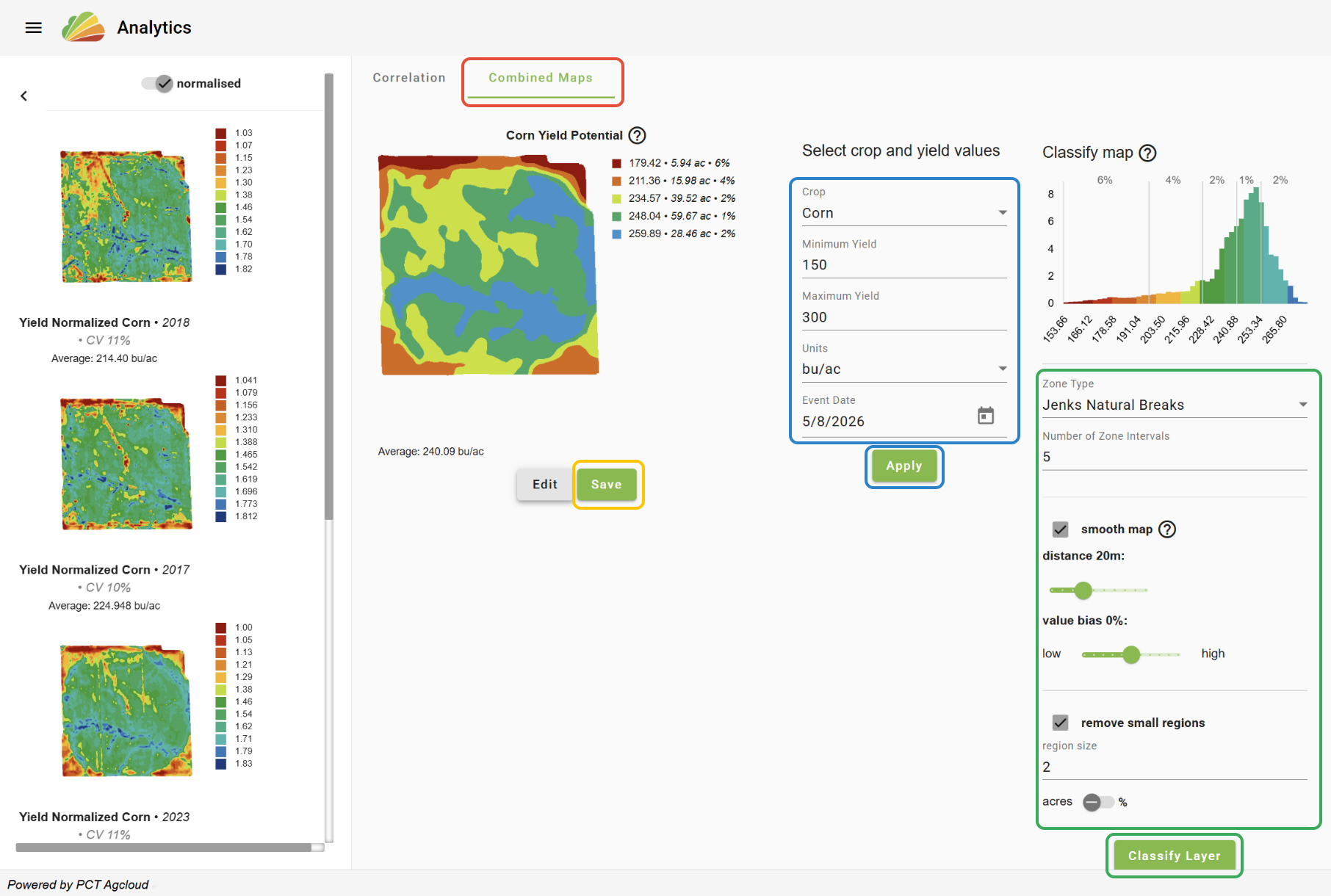
6. Click the 'Combined Maps' tab.
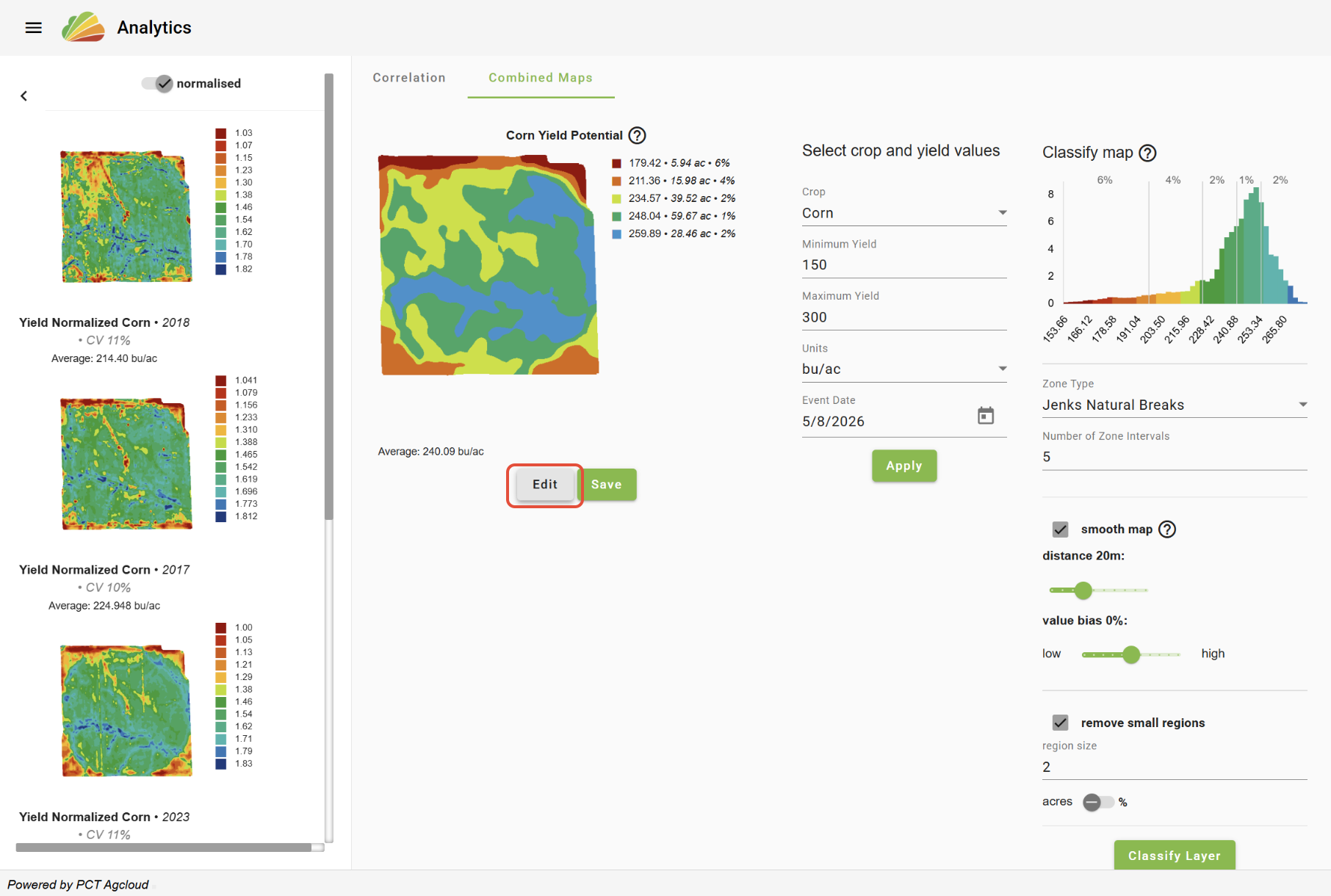
7. Choose the desired zoning settings and click 'Classify Layer' to apply.
8. Choose a Crop, set a Min and Max yield, choose the units for the layer, and select a date under which the layer will be saved. Then, click 'Apply'.
9. Click 'Save' to save the Yield Potential layer. Manual layer editing options can be accessed by clicking the 'Edit' button; more on this below.
Other Options
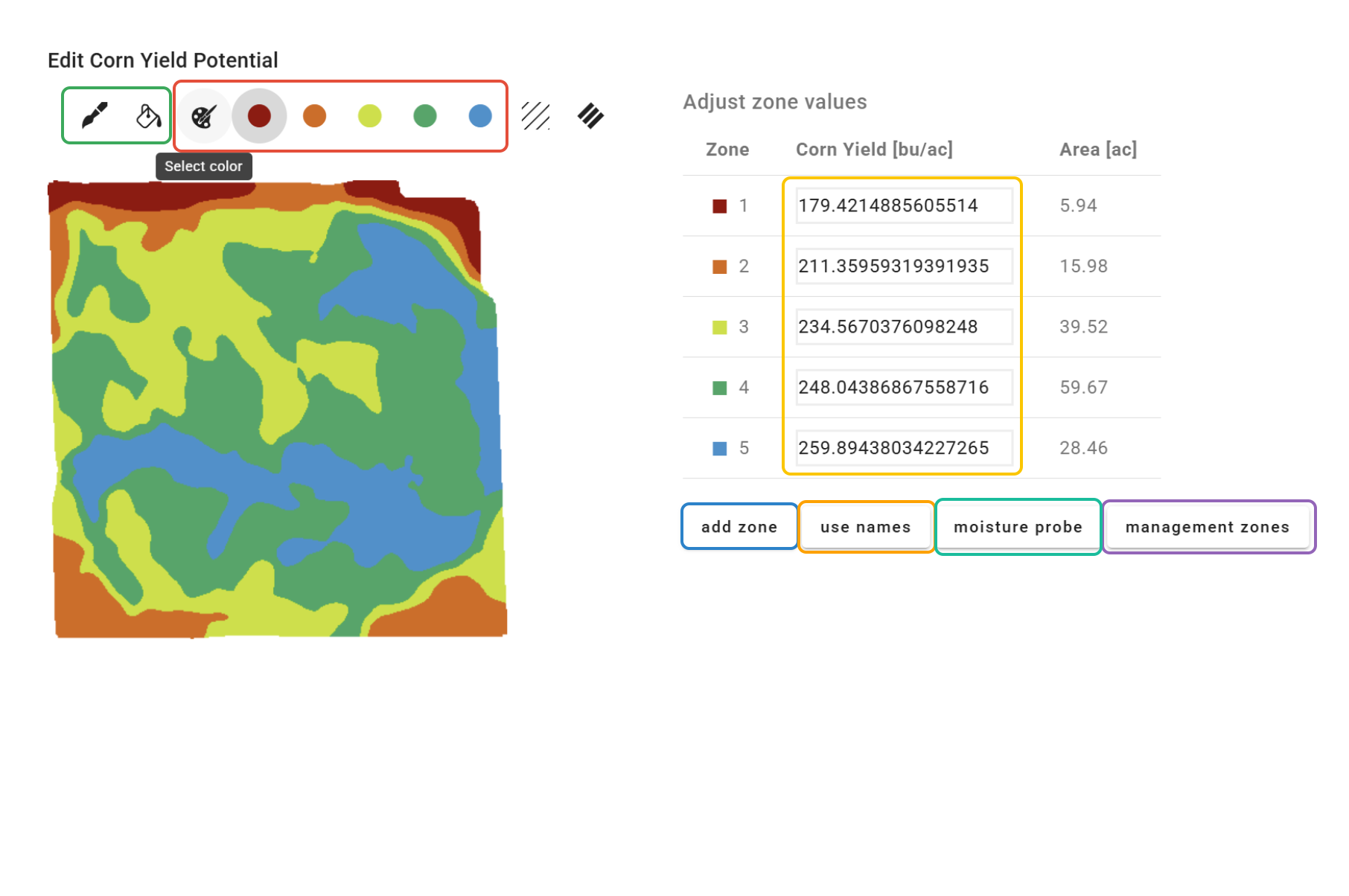
For zoned layers in the Yield Analytics tool, manual layer-editing options can be accessed by clicking the 'Edit' button. These options are explained below.
Click the 'Select Color' button to choose a zone to edit manually.
The manual painting options available are the brush and fill bucket. Click one of these options after selecting a zone color to use it in the map.
Click the 'add zone' button to add a new zone/color option.
The yield values can be edited manually for each zone.
Click the 'use names' button to add names to each zone.
Click the 'management zones' button to save the layer as a Management Zones layer rather than a Yield Potential layer.
Click the 'moisture probe' button to assign Start and Stop zones to create a Moisture Probe layer.
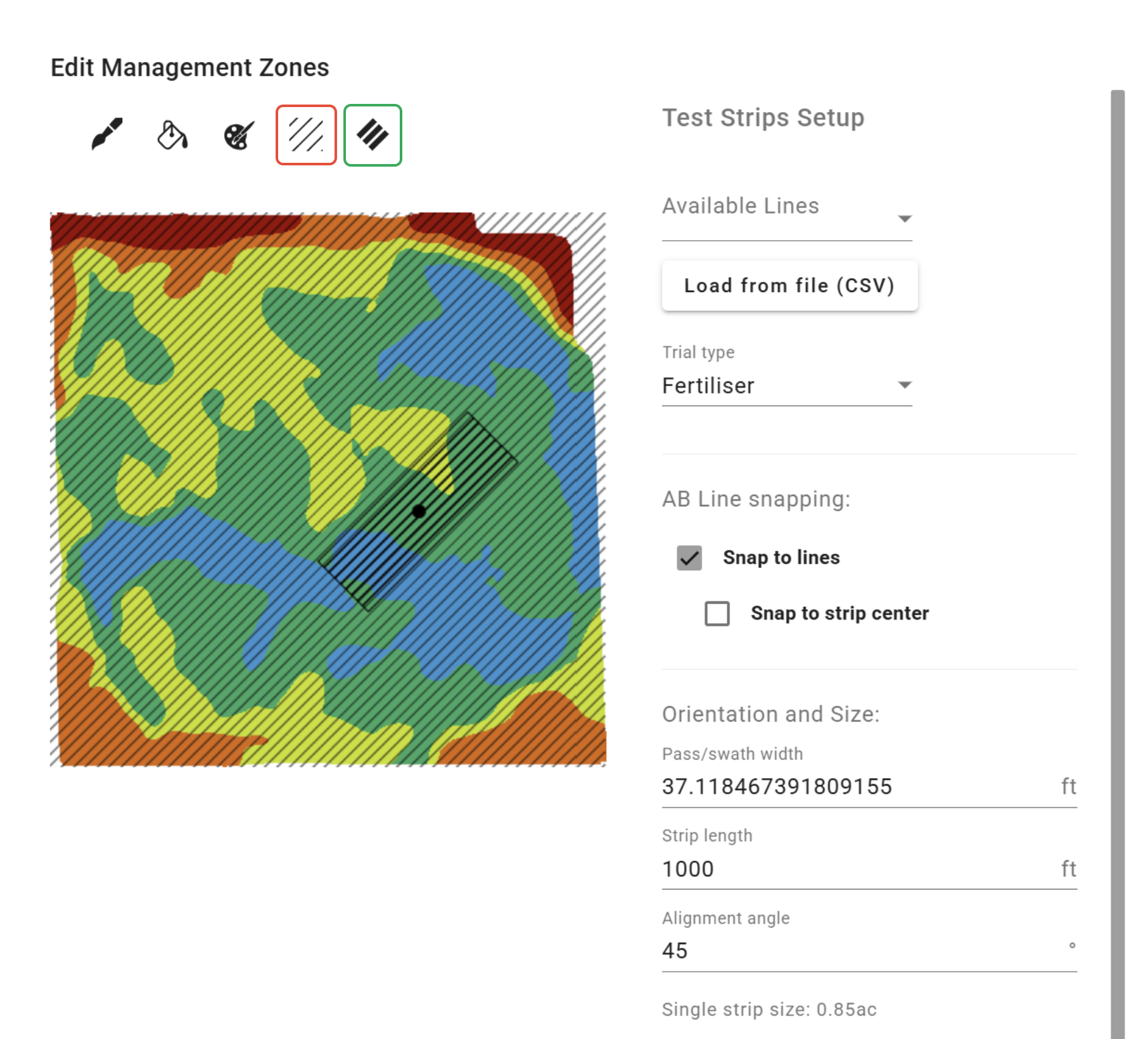
AB Lines can be created for the Field and saved.
Strip Trials can be created to be embedded within the layer.
Was this article helpful?
That’s Great!
Thank you for your feedback
Sorry! We couldn't be helpful
Thank you for your feedback
Feedback sent
We appreciate your effort and will try to fix the article